EinkBro browser is developed to support similar behavior of ereader APP to a normal browser, including page-by-page scroll feature, and more powerful text style customization. Nevertheless, no matter how well EinkBro is developed, sometimes normal ereader APPs are still more suitable for long-term reading. As a consequence, I also implemented the “Export to epub file” feature, so that users can export their favorite web content to a standard epub file for later reading on other devices or APPs.
In order to support this feature, an epub manipulation library called epublib is added. It’s very well written that I can easily create an epub file with several lines of codes. This library not only supports creating a new epub file, but also reading an existing epub file. That’s one of the reasons why I decided to support reading epub file for EinkBro APP: no extra library is needed. And the main reason is: it’s more convenient to read what’s being created in EinkBro, just inside EinkBro APP itself. The user experience may not be as good as other ereader APPs; however, users can use consistent toolbar actions to read the content, and also benefit from the powerful translation modes that EinkBro provides.
Implementation Details
Useful Example
Although epublib supports reading epub files, I can barely find examples of how to do it in Android platform. The most complete and useful code snippet is from here. This code snippet works; however, its coding convention is not following normal Java-like languages: all functions and variables are named in capital letters. Never mind; some refactoring is necessary later anyway.
It creates EpubReaderView based on WebView, and utilizes epublib to read content from epub file and write them to local file storage for later use. There are three steps in this flow:
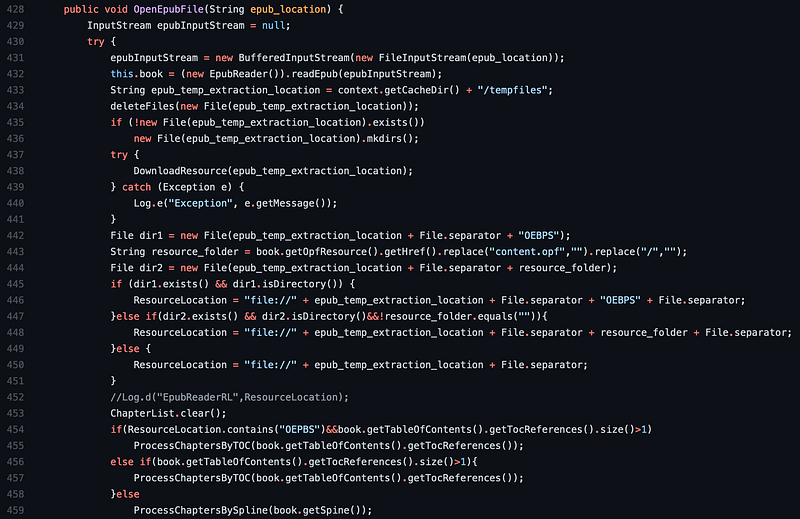
1.OpenEpubFile
Process TOC and then process Chapters so that a more logical chapter list is created. During this step, a local folder path is created in order to put image resources in it (at line 438).
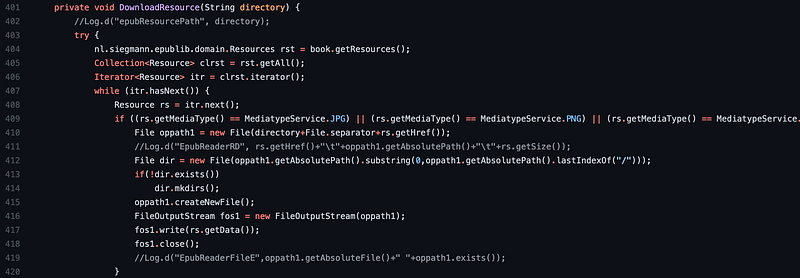
2.DownloadResource
In this step, image resources are filtered and write to local storage one by one.
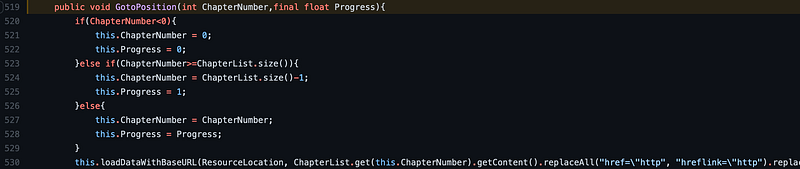
3.GotoPosition
After step 1 and 2, all materials are put to correct place; in step 3, we feed these materials to WebView by using loadDataWithBaseURL() , with ResourceLocation as its base. In this way, the image files written to local storage can be accessed by WebView directly.
Well, this flow works, but it’s not very elegant. Originally epub is a single file; now its content is written into several files in a temporarily folder. When reading each chapter, more IO is necessary to access these files by system.
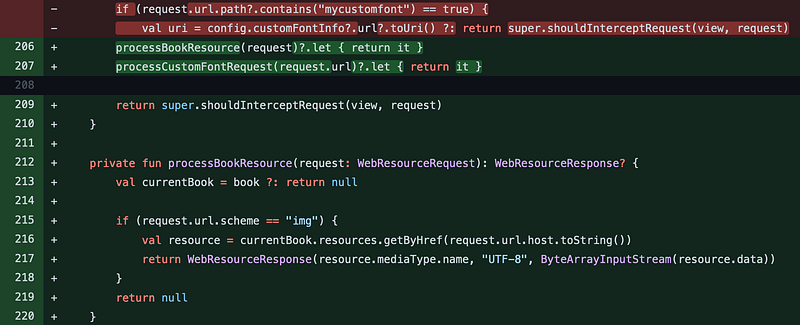
As you know, we can intercept WebResourceRequest in WebView, we can refactor the codes to bypass image file writing step.
Refactoring
In NinjaWebViewClient, we refactor shouldInterceptRequest() to support possible resources request from epub file. At line 215, url scheme is checked to see if it’s a specific scheme that I used in epub file for images. This may not be working for normal epub files. However, if the epub is created form EinkBro, the images would be correctly displayed without writing any files to local storage.
Text Selection Refactoring
epublibDroid also supports annotation to the displayed epub file. However, now it’s only effective to the opened epub, without saving the annotation information to database nor the file itself, which means that if user opens the file again, or even changing chapters, the annotation effect would be gone.
To save the annotation information, the selected text info and annotation method should be refactored first. That’s the refactoring we will do here.
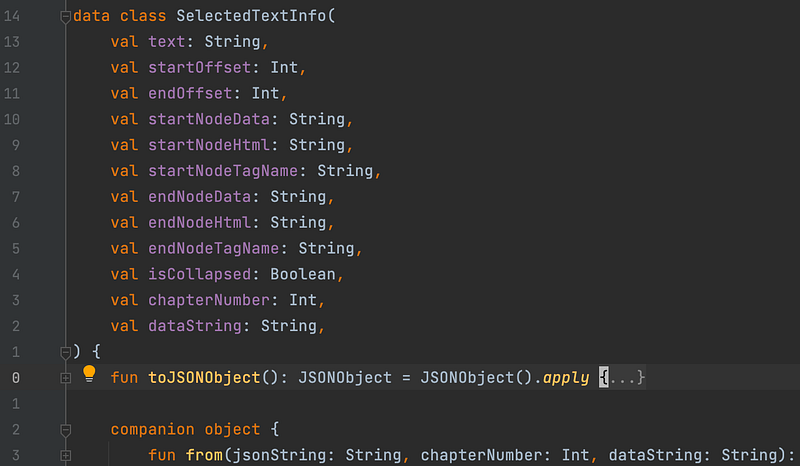
SelectedTextInfo class is created to better describe the selected text inside web content. Originally, only a json string is used and passed around for data manipulation.
Refactoring annotation function
Create enum class to represent different annotation methods (originally it’s decided by hard-coded integers). Now, a well descriptive SelectedTextInfo object is used, and annotation type enum is passed into annotate() function.


Actual annotate implementation in Javascript
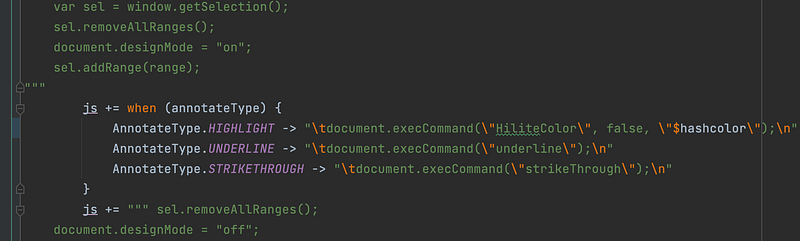
This is something new to me. Inside web content, if I want to annotate html text element, I can use following commands to document object.
document.execCommand("HiliteColor", false, "$hashcolor")
document.execCommand("underline");
document.execCommand("strikeThrough")
As code below, according to annotation method, corresponding javascript snippet is used to annotate the selection range.
Future Works
Now the selected text information is composed of selection range. This is not standard annotation method used in epub. A more common of way recording this is using EPUB CFI Fragment Selector. The selector would be like string below. I believe this is not supported in epublib. Before really implementing the saving feature, I may need to study whether there are existing solutions for it on Android platform.
epubcfi(/6/4[chap01ref]!/4[body01]/10[para05]/3:10)