Flickr Authentication in Flutter (II)

Following the steps described in last article, you can have a working version of Flickr authentication module in Flutter. However, it’s very tedious to remember the pin code, and input it in the dialog in step 2.
By reading closely the “Getting a request token” part in Flickr website, you’ll find that, in fact, there’s another way to get the verifier we need without user intervention. A parameter called “oauth_callback” is used to specify a url. If it’s defined in the request; after authorization is complete, Flickr will redirect the user back to your application using the oauth_callback specified with your Request Token. It looks like this:
http://www.example.com/
?oauth_token=72157626737672178-022bbd2f4c2f3432
&oauth_verifier=5d1b96a26b494074
Since the oauth_verifier can be obtained directly in the url, you don’t have to ask user to input the pin code anymore!
So, let’s start modify the original implementation.
Originally, I use url_launcher package to display the web authentication page, and get the pin code. We have to change to use flutter_webview_plugin instead, since it allows us to intercept the redirect urls.
I used “http://localhost/” as my callback url, and try to check url change on FlutterWebviewPlugin instance. When its host is “localhost”, and it does contain a query parameter “oauth_verifier”, I just feed it into requestToken directly. No more memory tests and displaying dialogs!
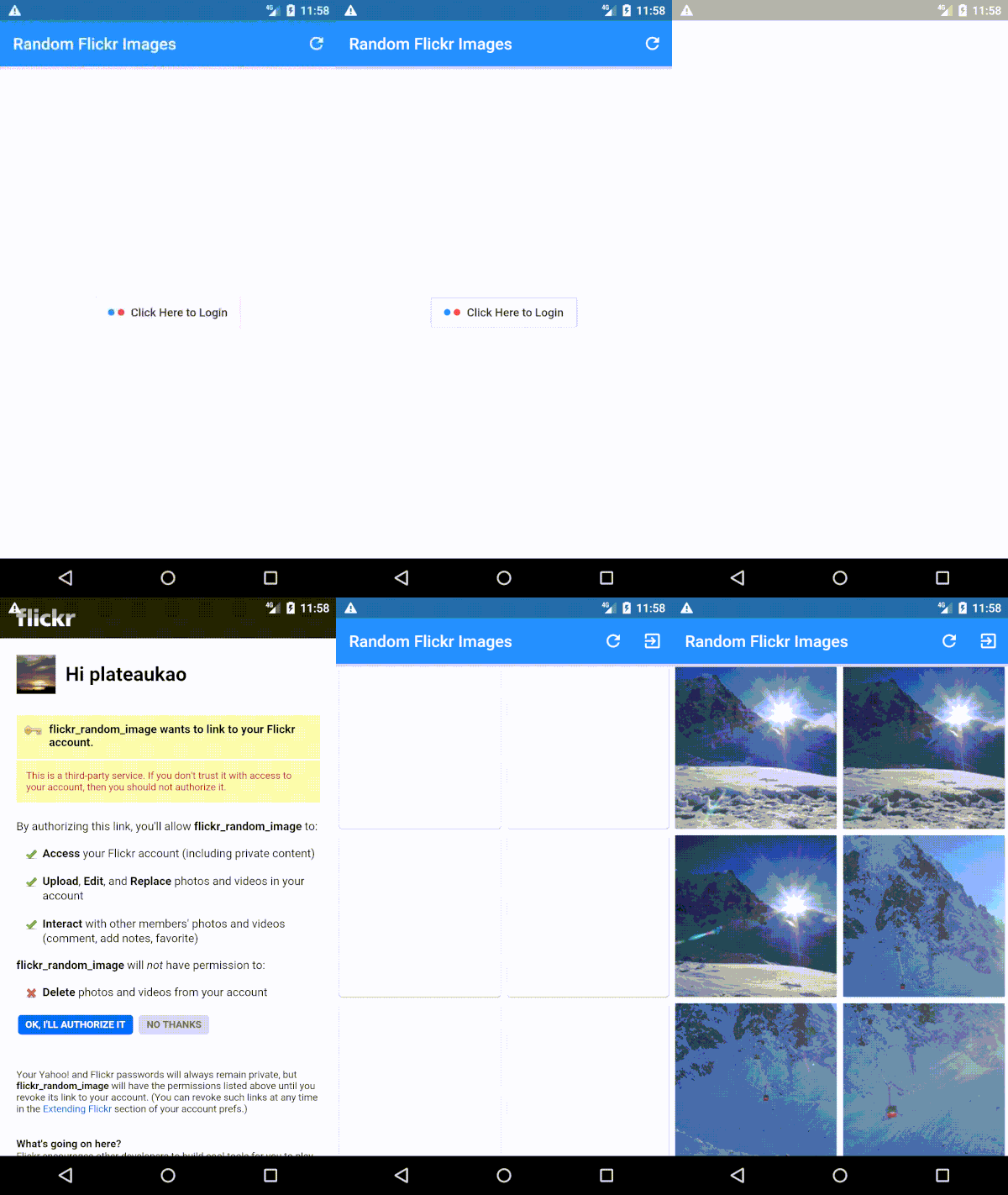
That’s it! Hope you find this article as useful as I do. Here’s the demo from my app: