Text Translation in Browser by Using an extra WebView: EinkBro (11)
Why is this necessary
Surfing on the internet is not only suitable for getting new knowledge, but also good for learning a new language. By browsing websites in a different language, you can learn how expressions are used, and what are concerned for the people who use that language. However, before you’ve got to a certain familiarity of the language, you may be intimidated by so many unknown words to be looked up for.
What Chrome offered & why it does not fit my needs
Google Chrome provided a solution to somewhat solve this problem: it translates the whole page into a different language on the fly. With the original web content layout, every part of the text content are translated.
The way Chrome did is suitable for quickly understanding the web content, but not a perfect way for language learners, because the original content is gone. Not being able to compare the content side by side, it decreases the benefit of surfing web in another language.
 Google Chrome’s way
Although Chrome also provides another way that user can select texts to be translated, and show a popup translation dialog, it’s too tedious to do so if the web article is very long; and user has to do it manually multiple times.
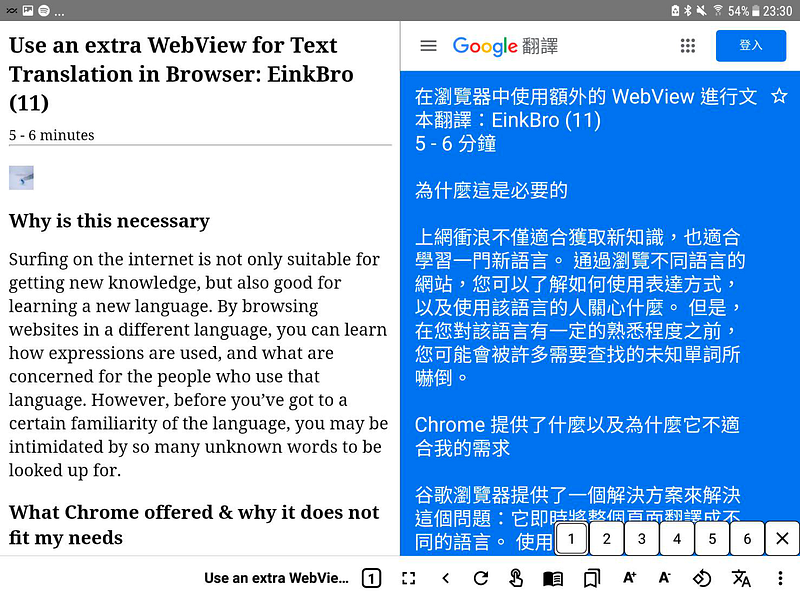
What I want to achieve is like the following diagram: displaying another UI component that contains the translation result, aside to the original web content.
 EinkBro’s way
By doing so, you can easily look up for the sentences you don’t understand by reading right side of the screen.
How to achieve it
To achieve this, several things need to be done.
- Show a separated WebView beside the original browser.
- Grab text content from original web.
- Translate the text content and display the results in the newly created WebView.
Let’s go through these steps one by one.
Show a Separated WebView
This is the easy part. I created a LinearLayout to hold both the original browser WebView container, and the translation WebView container. Both have android:layout_weight=1. In most cases, translation WebView container is empty, and visibility is set to GONE.
Only when user triggers full text translation feature, the container is set to VISIBLE, and a WebView is created inside, so that it can take up half of the screen space.
Extract Content Text from Original Web
Thanks to previous implemented feature of EinkBro Browser, it’s possible to turn most web pages into Reader Mode: keeping only the most essential content, purging out all other minor components. In this mode, it’s a line of code the get the plain text of the content part, since in JavaScript implementation (originated from Firefox mobile browser), the article object already has a variable to keep the text content for estimating reading time.
After turning on Reader Mode, by using evaluateJavascript function, the text can be extracted from WebView.
Text Translation and Display in Separated WebView
This is the tricky part. Everyone knows that Google Translate is good for translating texts. So, for normal users, it’s very common to open up a Google Translate Web page, and copy/paste content into it to get the result; or, select a part of the text, and show the popup Translation Dialog.
However, for 3rd party apps, if anyone (other than Google itself) wants to integrate Google Translate service, he has to use Google’s APIs, and pay by the used quota. This is not what I am going to do. Since I don’t charge App users anything for using it, I don’t want to pay for their usage too.
Because Google Translate Web page is still free for users, I go another way: showing the Google Translate Web page directly in the new WebView.
Well, If I stop here, then users still have to copy/paste content by themselves to see the translation results. Luckily, Google Translate Web url provides a convenient way of passing the to-be-translated text into url directly! While opening the Google Translate page, I just need to append the text to the end of the url! The pattern is as below:
https://translate.google.com/?text=" this is a book"
Content Pagination
The url querystring solves the translation problem, but comes with a price: URL length is limited. If the web page contains too many texts, Google Translate cannot handle the url correctly.
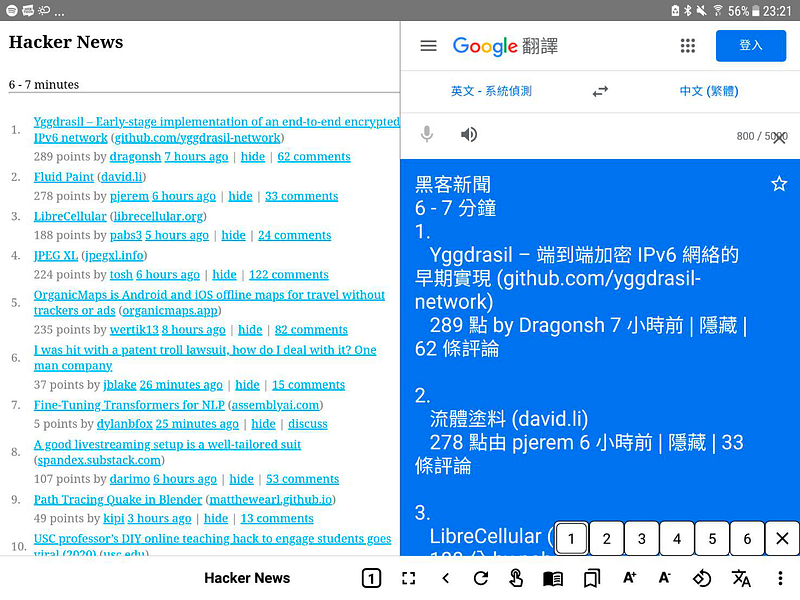
To by pass this side effect, pagination is applied. If the text is longer than a certain threshold, it’s divided into segments, and paginated buttons are also displayed on the right bottom side of the screen. Users can know there are multiple pages to be translated; once he finished one page, he can click on next page for more translations.
DEMO
Screenshot
Video
Reference
This feature is included in release v8.10.0
Some issues are found and will be fixed in next minor release.