Overview
NerLan is a listening-first language study app for iPhone and iPad. It plays any podcast you add — Japanese, Korean, English, French, Spanish, whatever you're learning — and on top of ordinary playback it layers study tools: AI-generated transcripts that follow the audio sentence by sentence, review handouts, line-by-line translation, and shadowing practice with your own voice recordings.
The interface is in Traditional Chinese. This guide gives every label in the app alongside an English explanation.
To start: open the 節目 (Shows) tab, tap + to add a podcast, open the show, and tap an episode. Everything else — downloading, transcripts, handouts — is one more tap from there.
The four tabs
| Tab | What it holds |
|---|---|
| 節目 (Shows) | The podcasts you subscribe to, plus the add (+) and settings (gear) buttons. |
| 收藏 (Favorites) | Episodes you've hearted, grouped by show. |
| 下載 (Downloads) | Episodes stored offline — explicit downloads and auto-cached streams. |
| AI | Every episode that has a generated transcript or handout — your study library. |
A mini player floats above the tabs whenever something is loaded: tap its cover or title to open the full player. Tabs keep their state — scroll position and open show pages survive switching away and back.
On iPad the layout becomes two-pane: the browser sits in a left column and study material — the transcript or handout of the episode you're listening to — fills the right side automatically.
Adding podcasts
The + button in the 節目 tab opens 新增 Podcast. Paste either an Apple Podcasts link (podcasts.apple.com or an apple.co short link) or a raw RSS feed URL and tap 新增. The sheet offers a shortcut, 到 Apple Podcasts 搜尋節目, that opens Apple Podcasts so you can search for a show, copy its link, and paste it back.
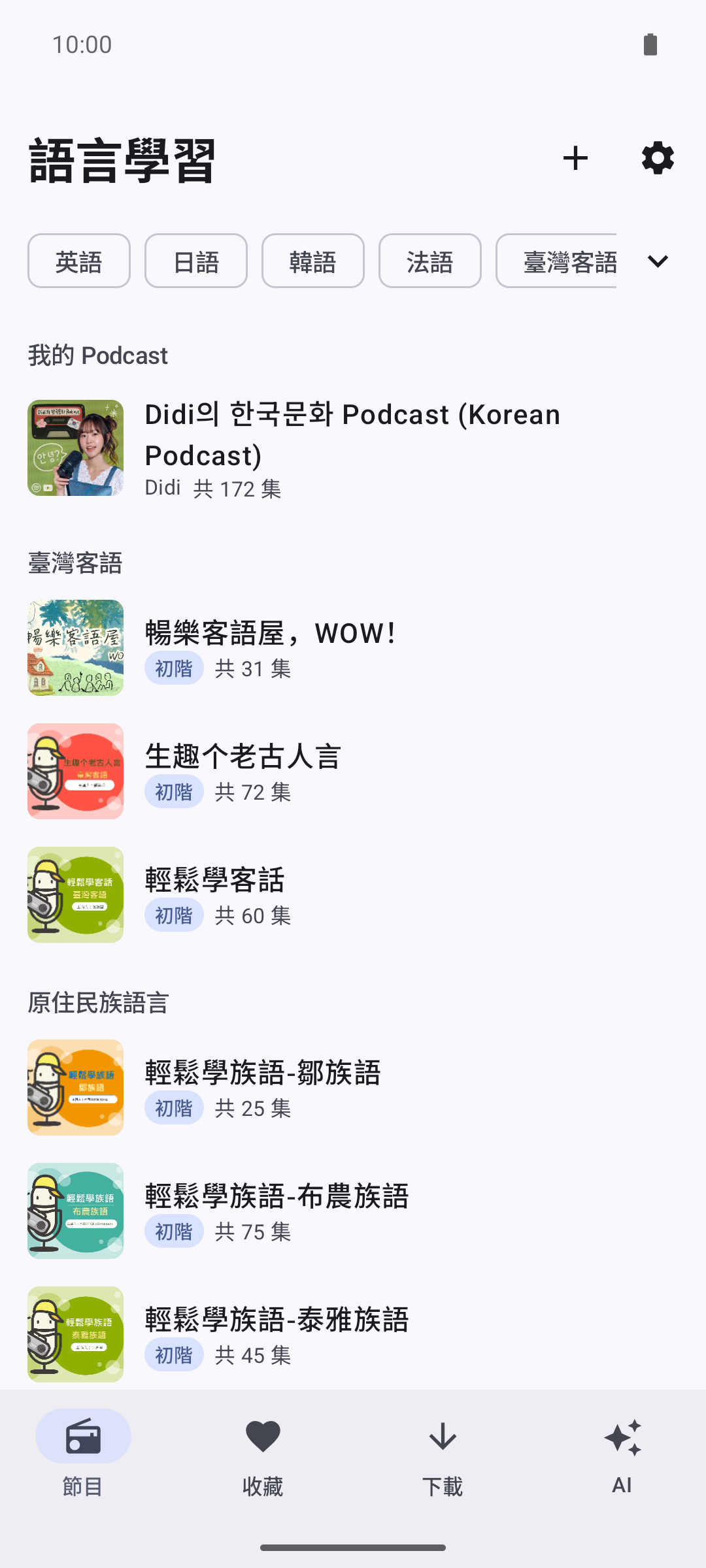
Subscribed shows appear under 我的 Podcast in the 節目 tab. Swipe a show left to 取消訂閱 (unsubscribe).
Your shows
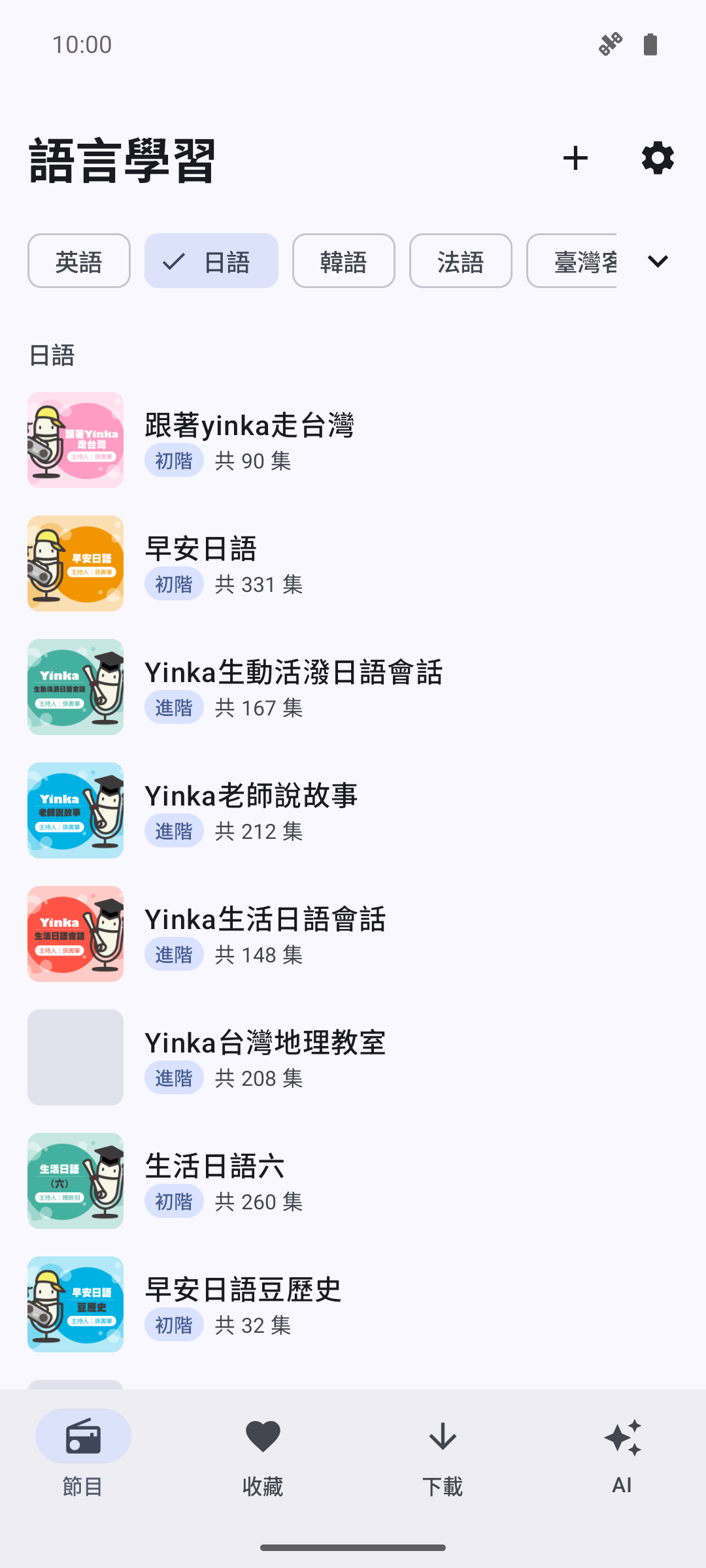
The 節目 tab lists your subscriptions: cover, title, author, and episode count (共 N 集). Tap one to open its page:
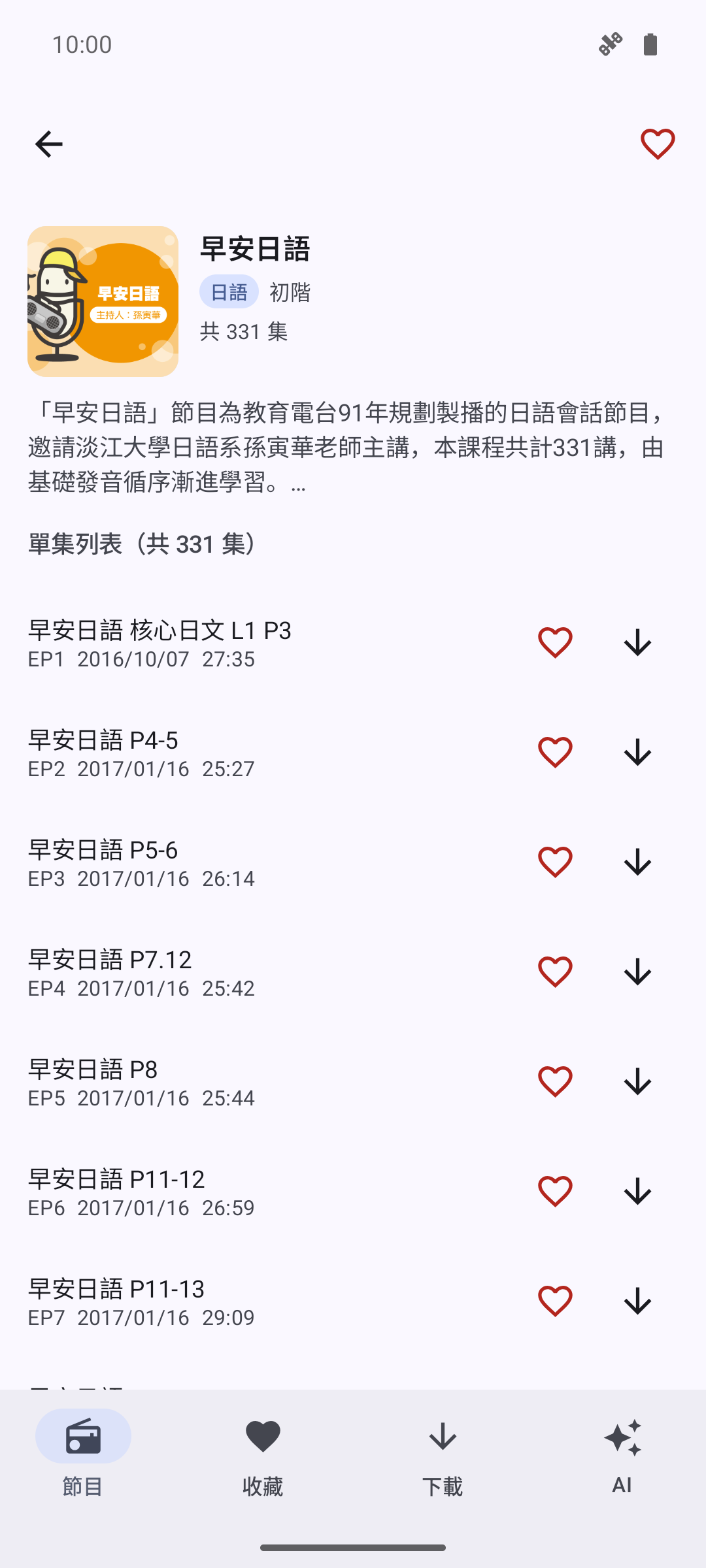
- The introduction is clamped to three lines; tap it to expand.
- 單集列表 is the full episode list from the feed, newest first. Pull down to refresh for new episodes.
- Each episode row has a heart (收藏) and a download button (下載); tapping the row plays it with the rest of the list queued behind it.
- Long-press an episode to attach a 註記 (note) — see Favorites & notes.
- The speech-bubble button in the top bar sets the show's Siri 名稱 — see Siri.
The player
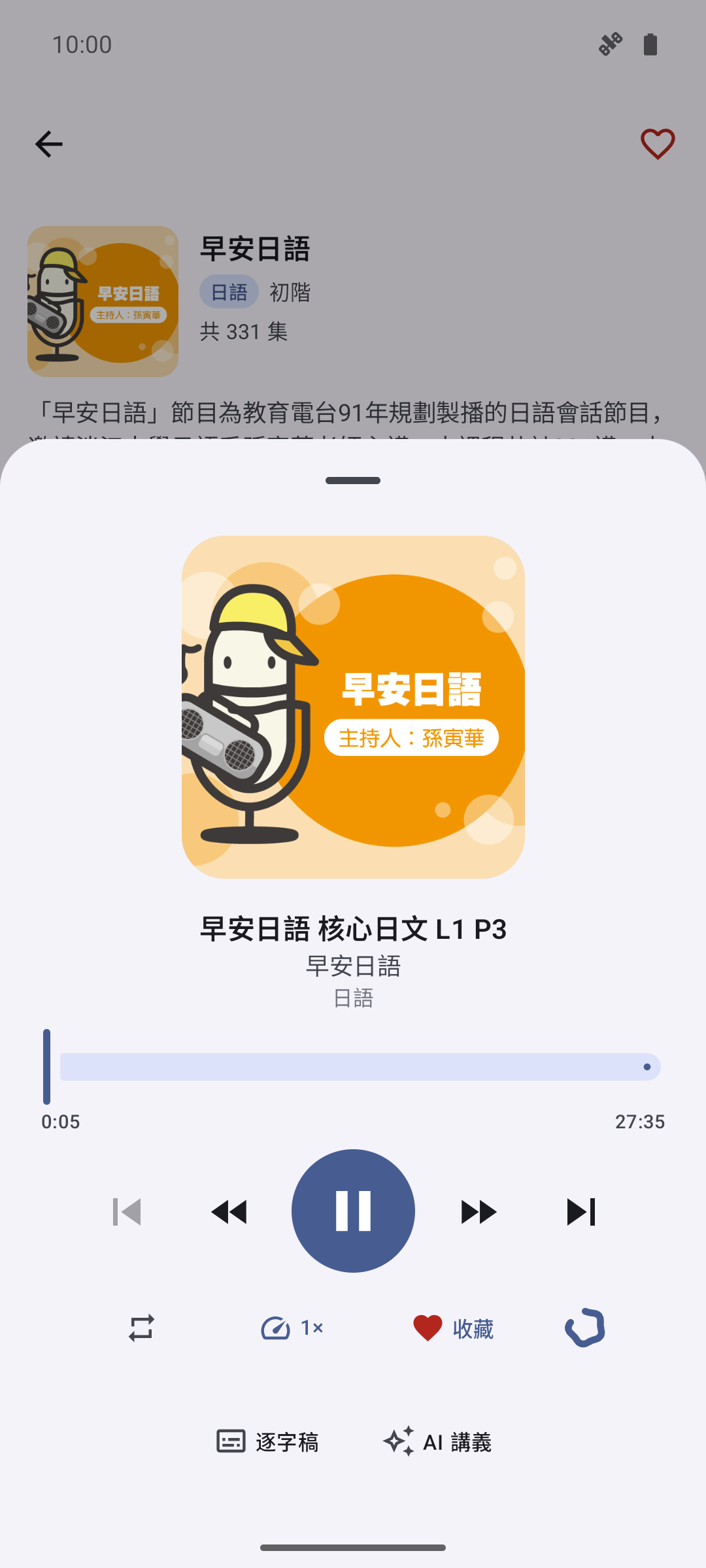
Tap the mini player to open the full player sheet.
- Transport: previous · back 15 s · play/pause · forward 15 s · next. The scrubber shows elapsed and total time.
- Repeat cycles off → repeat queue → repeat one; speed offers 0.5×–2×. Both are remembered across launches.
- 收藏 hearts the episode; the download control shows 下載, a spinner, or 已下載.
- Once AI is configured, an extra row appears: 逐字稿 (transcript) and AI 講義 (handout), joined by 字幕 (in-player synced captions) and 跟讀 (shadowing) once the episode has a timestamped transcript.
- Tap the cover art to jump to the show's episode list.
Playback continues in the background with lock-screen and Control Center controls. Every episode remembers its position and resumes where you left off; finishing an episode clears the resume point so a re-listen starts fresh.
Downloads & streaming cache
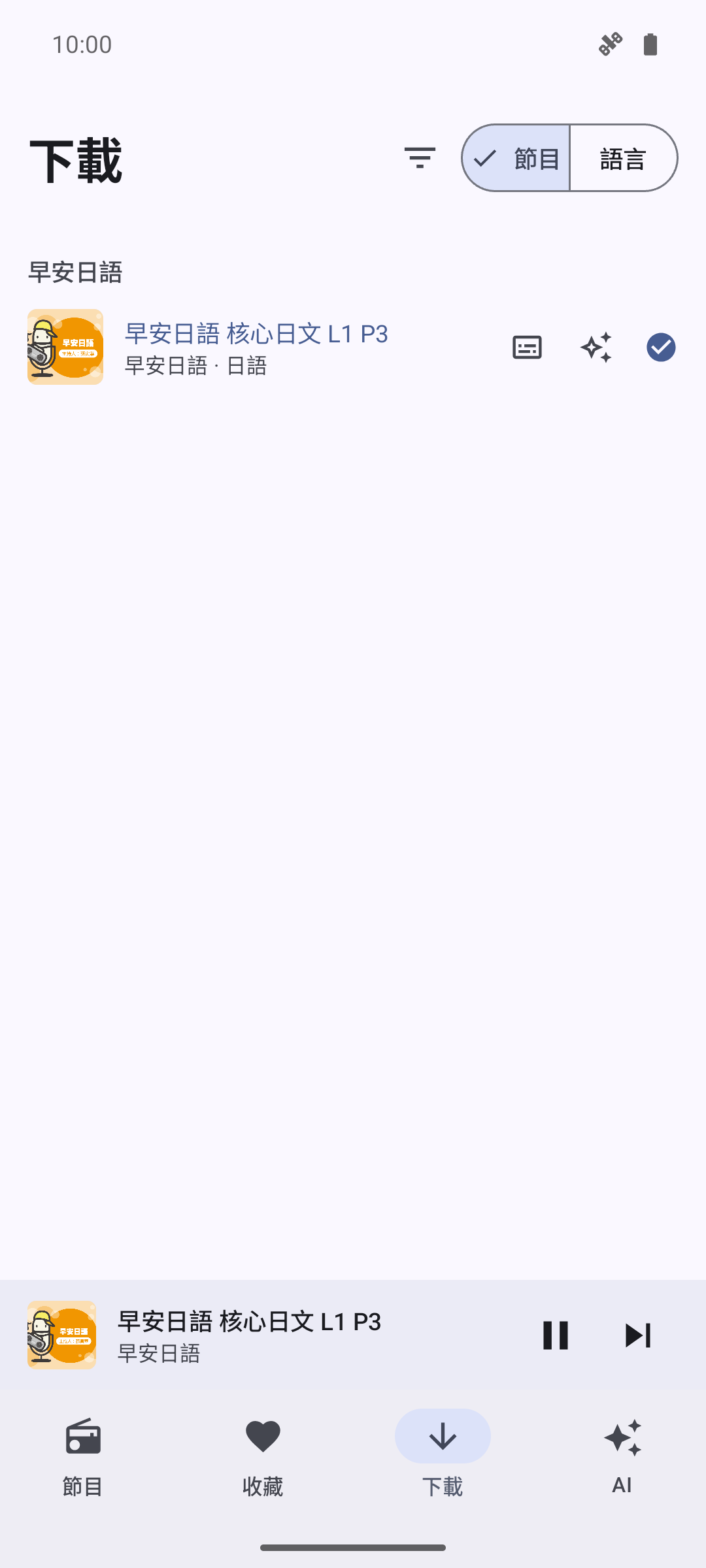
Tapping 下載 on any episode saves its audio for offline listening.
Separately, 串流時自動快取 (streaming cache, off by default — see Settings) keeps the audio you stream: an episode played to the end becomes fully cached and playable offline. 清除快取音檔 in Settings empties the cache.
The 下載 tab shows both kinds side by side:
- A green check = 已下載 (explicit download); a dimmed check = 快取 (cache capture).
- The filter button (顯示) narrows to 全部 / 已下載 / 快取; the segmented control groups by 節目 (show) or 語言 (language).
- Swipe a row left to delete the local audio. Long-press to edit its note.
Setting up AI
Transcripts, handouts, and translations need a speech-to-text and a chat model. Open settings (the gear in 節目) — the API 來源 section picks where those requests go, with two independently saved configurations:
OpenAI 官方 (official)
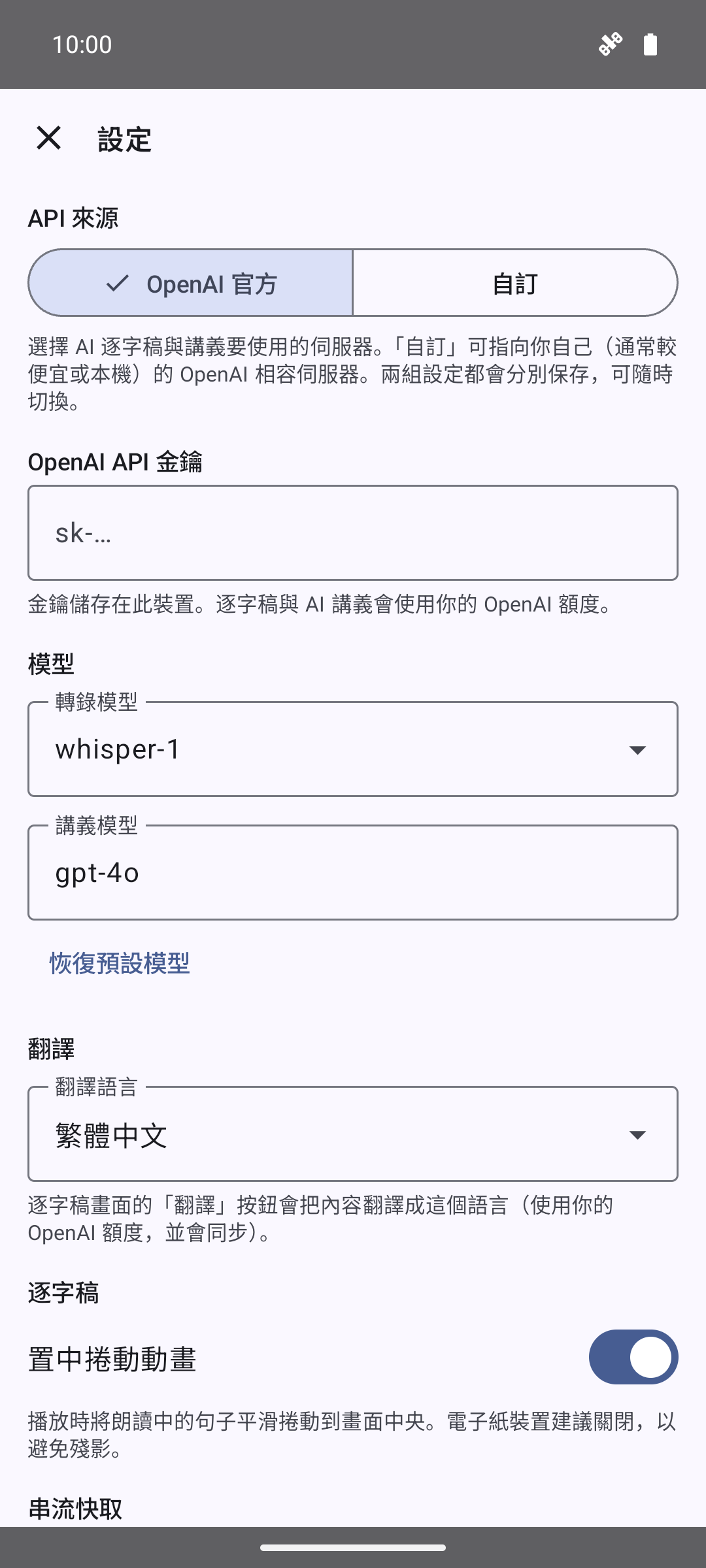
- OpenAI API 金鑰 — your key, stored in the device Keychain. Generation uses your own OpenAI credit.
- 轉錄模型 (transcription model) — whisper-1 (returns timestamps for synced captions), gpt-4o-mini-transcribe, gpt-4o-transcribe, or gpt-4o-transcribe-diarize.
- 講義模型 (handout model) — free text; used for handouts, translation, and sentence segmentation. 恢復預設模型 restores both defaults.
自訂 (custom server)
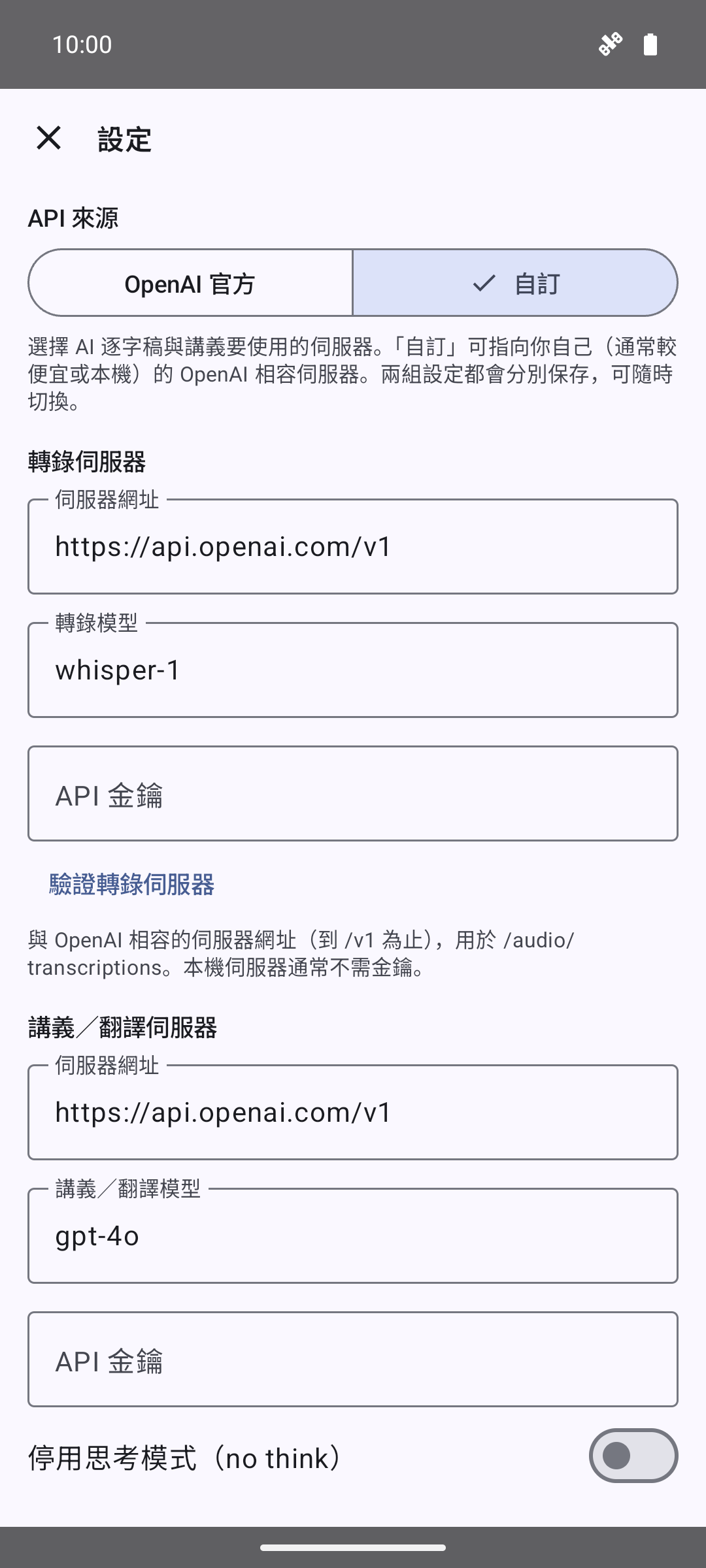
Point the AI features at any OpenAI-compatible server — typically cheaper, or running on your own machine (whisperASR, Ollama, a proxy). Two endpoints are configured separately:
- 轉錄伺服器 — server URL (up to
/v1), transcription model, and an optional API key. Used for/audio/transcriptions. The magnifier button (搜尋區域網路伺服器) finds whisperASR servers on your local network by Bonjour and fills in the address for you. - 講義/翻譯伺服器 — server URL, chat model, optional key, and a 停用思考模式(no think) switch that sends
reasoning_effort=noneso local thinking models (qwen3, deepseek-r1, …) skip their reasoning dump. Used for handouts, translation, and sentence cleanup. - Each block has a verify row — 驗證轉錄伺服器 / 驗證講義/翻譯伺服器 — that sends a real test request and shows a check on success or the server's own error message on failure.
Transcripts (逐字稿)
The 逐字稿 button — in the player or on episode rows — transcribes the episode into clean, punctuated sentences, one per line. An outlined icon means not generated yet; tapping starts the job and shows its progress. A filled icon opens the saved transcript instantly. Long-press for 重新產生 (regenerate) or 刪除逐字稿 (delete). Jobs keep running if you close the player.

In the transcript viewer:
- With a timestamped model (whisper-1), the sentence being spoken is highlighted and kept centred as the audio plays. Tap 字幕 in the player to show the same synced view in place of the cover art.
- The toolbar cycles three font sizes, cycles the 翻譯 views (below), and copies the whole text; the screen stays awake while a transcript is open.
- Long-press a sentence for 複製 (copy), 從這裡播放 (play from here), or 重複這句 (loop this sentence).
Translation (翻譯)

The transcript's globe button cycles three views: original → original + translation → translation only. In the bilingual view each sentence carries its translation directly underneath, so you read the original first and check yourself one line later. The first tap generates a translation into the language chosen in Settings → AI 輸出語言 (default 繁體中文; also English, 日本語, 한국어, Español, Français, Deutsch, Tiếng Việt, Bahasa Indonesia, ภาษาไทย). Translations stream in batch by batch, are cached, and sync with your study material.
Opening a transcript never silently starts a paid translation — a remembered bilingual view is only restored when the translation is already cached.
Shadowing (跟讀)

Shadowing turns a transcript into speaking practice. Enter it from the player's 跟讀 button (available for the playing episode when its transcript has timestamps) or the loop button in the transcript toolbar. The practice bar sits at the bottom of the transcript, and translation view keeps working, so you can shadow with meanings in sight.
- The current sentence loops; tap any sentence to jump the loop there.
- Controls: previous / replay / next sentence, the microphone to record your reading, play-back of your recording, and a 重複次數 menu — 1 次 / 2 次 / 3 次 / 5 次 / 無限.
- With a finite count, the loop plays that many times and then automatically starts recording your reading; stopping plays your take back so you can compare against the original.
- One recording is kept per sentence; a new attempt overwrites it. Recordings stay on the device. The first recording asks for microphone permission.
AI handouts (AI 講義)
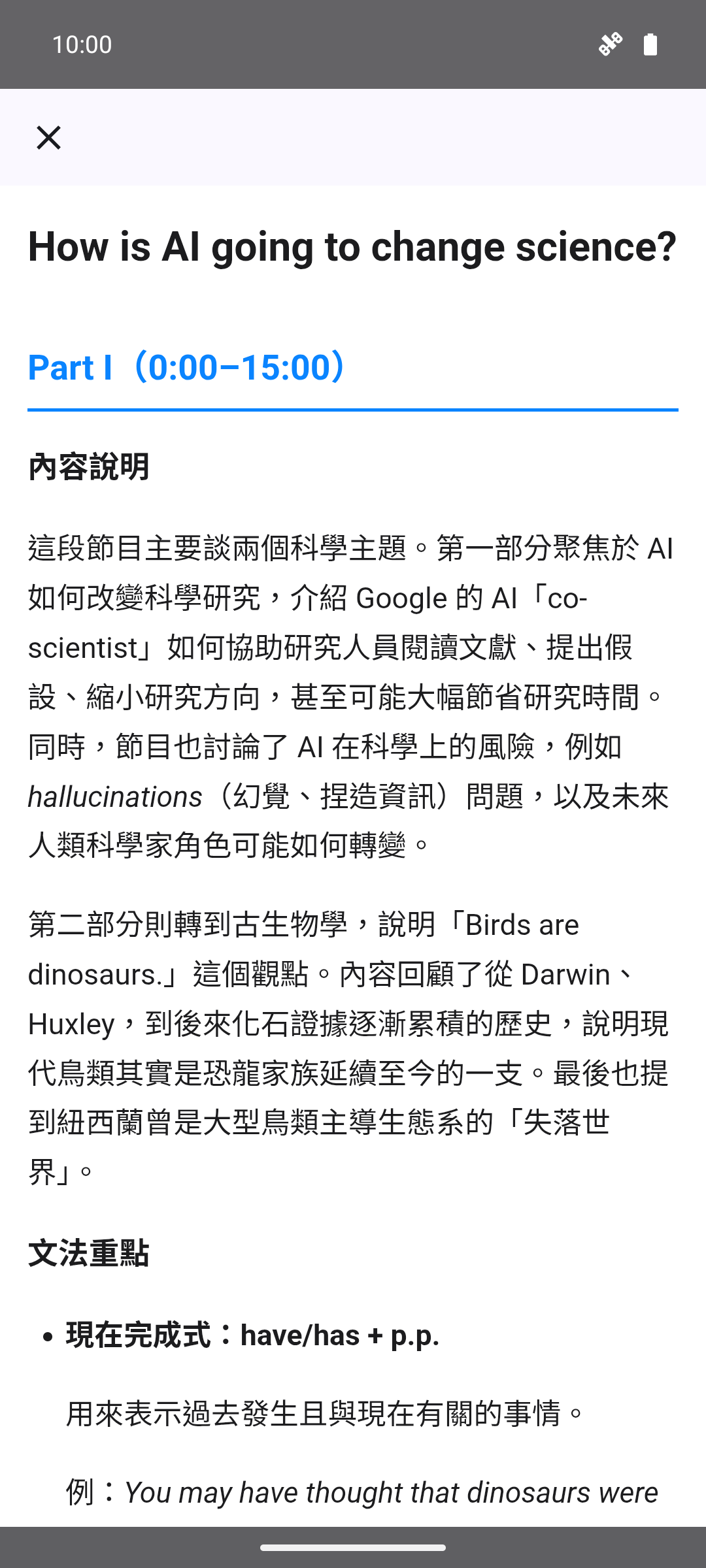
The AI 講義 button builds a review sheet from the episode's transcript (generating the transcript first if needed). Every handout has four sections, written in your AI 輸出語言: 內容說明 (what the episode covers), 文法重點 (grammar points), 例句 (example sentences with translations), and 單字 (a vocabulary table with pronunciation and meanings). Foreign-language material keeps its original script.
Episodes longer than ~15 minutes are split into Part I / II / III sections. Long-press the button to regenerate or delete the handout.
The AI library
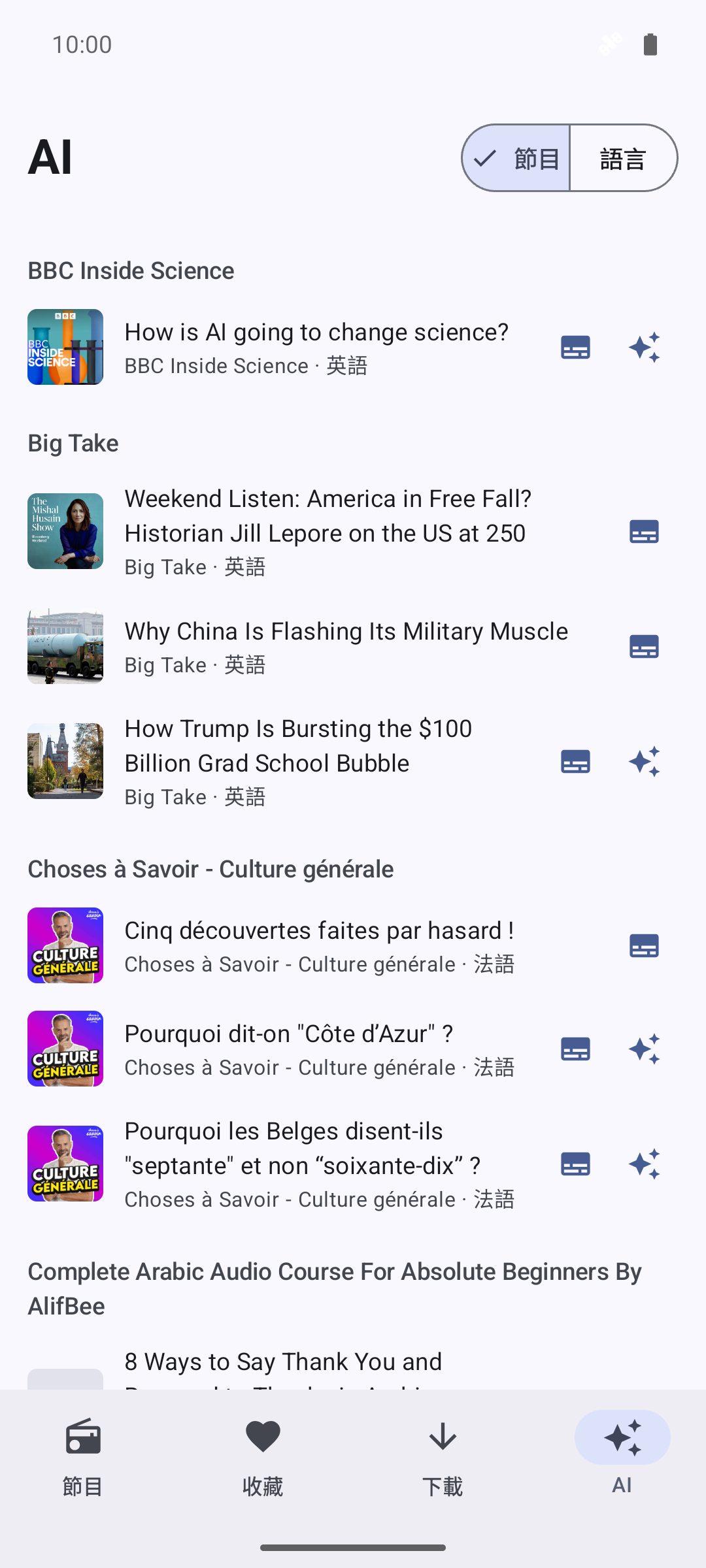
The AI tab lists every episode that has a transcript or handout, grouped by 節目 or 語言 — your generated study material in one place. Content here opens even with no AI configured, so material generated earlier (or synced from another device) is always readable.
Favorites & episode notes
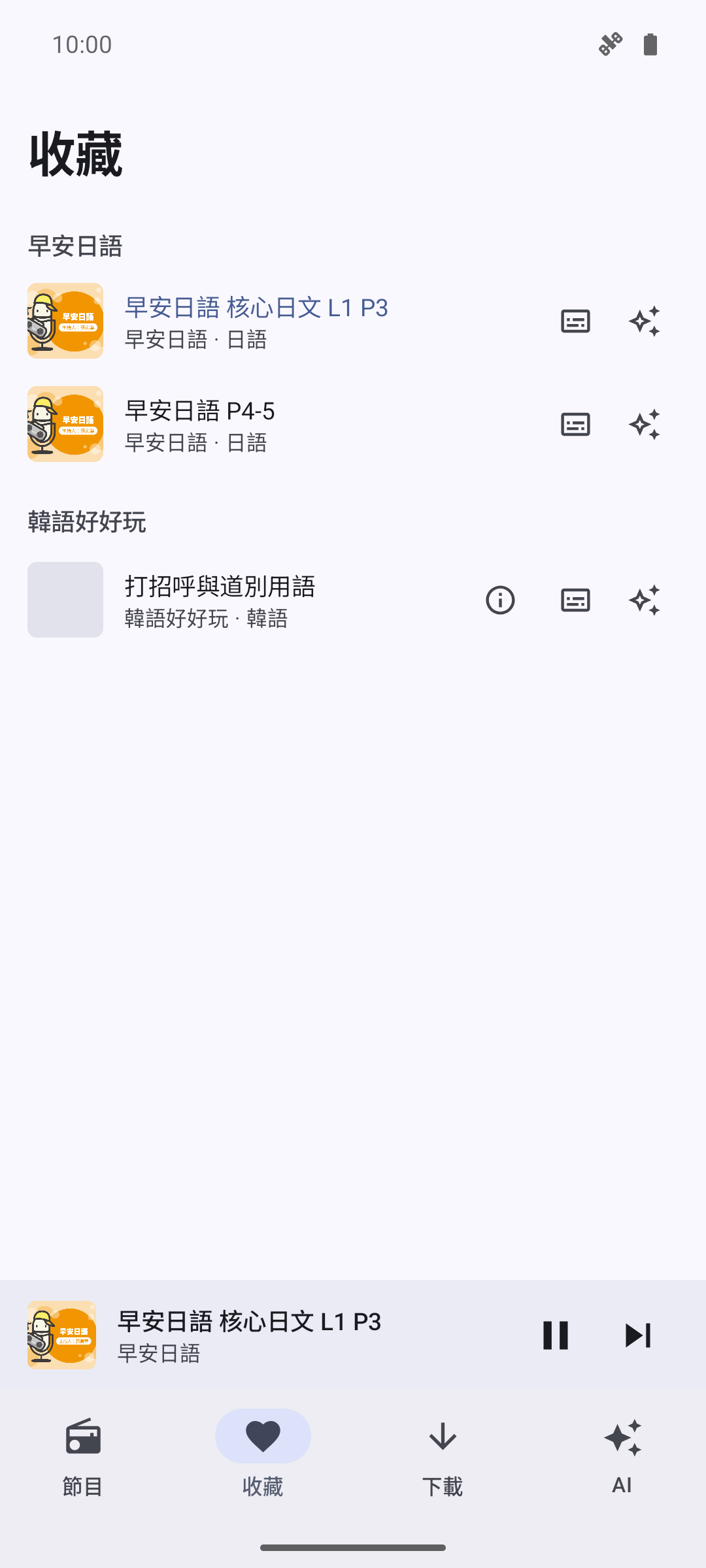
Heart any episode — on its row or in the player — and it collects in the 收藏 tab, grouped by show. Swipe an episode left there to remove it.
Notes: episode titles are often just "EP12", so you can attach a note to any episode — long-press a row anywhere and choose 新增註記 (or 編輯註記). The note appears as an extra line under the episode title in every list.
Home-screen widgets
Five widgets keep practice one tap away; their layouts adapt to the size you give them, and 繼續收聽 and 學習紀錄 also come in Lock Screen sizes.
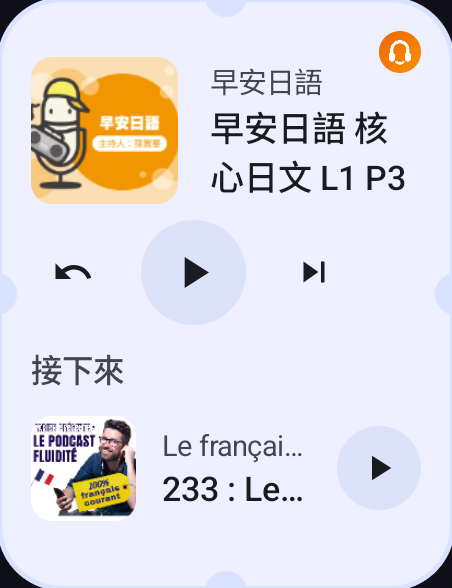
繼續收聽
The playing episode — cover, progress, and time remaining — with back-15s, play/pause, and next buttons right on the widget. Taller sizes add an 接下來 list of what plays next; with nothing loaded it offers your most recent download or favorite. Tapping the cover opens the player.
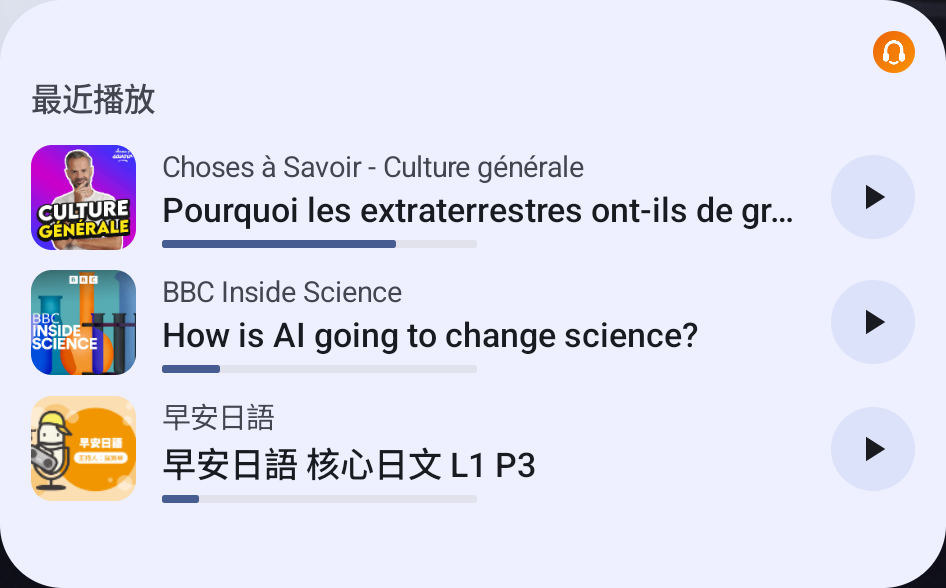
最近播放
The shows you've been working through, each with the episode you stopped at and its resume progress. The play button picks the whole show back up exactly there, with the rest queued behind it; tapping a row opens that show's episode list.
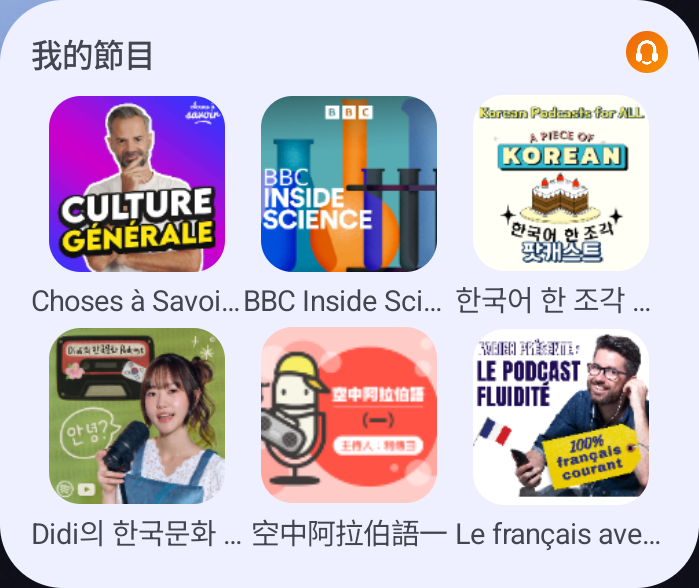
我的節目
A cover grid of your subscribed shows — one tap opens the show. By default it orders by recent listening; edit the widget to hand-pick exactly which shows appear and in what order, and place several copies pinned to different sets.

學習紀錄
Today's listening minutes against a 30-minute goal ring, your 連續 N 天 streak, and this week's total. Tapping it opens the app.
There is also 最新單集: pick one show when adding the widget (選擇節目) and it shows that show's newest episodes with a play button on each.
Siri
NerLan registers App Shortcuts, so Siri can drive it hands-free:
- 播放節目 — "NerLan 播放 〈show〉" / "NerLan play 〈show〉"
- 播放最新一集 — "在 NerLan 播放 〈show〉的最新一集"
- 繼續上次的節目 — "在 NerLan 繼續上次的節目" / "Resume NerLan"
- 設定播放速度 — "在 NerLan 用 〈speed〉播放"
- 查詢學習時間 — "我在 NerLan 聽了多久" / "How long did I listen in NerLan"
Podcast titles are rarely something Siri hears cleanly, so each show page has a speech-bubble button that opens Siri 名稱: give the show a short nickname, and the sheet lists every phrasing Siri will understand (Siri 聽得懂的說法), including romanized and language-name aliases.
iCloud sync
Turn on Settings → 同步到 iCloud and your transcripts, translations, and AI handouts are backed up to iCloud and merged across devices signed in to the same Apple ID — they also come back automatically after a reinstall. Listening statistics merge across devices too. Audio files and shadowing recordings stay local. Requires being signed in to iCloud with iCloud Drive enabled.
Statistics
Settings → 統計 opens two screens:
- 使用統計 — total listening time, completed episodes, streak (連續聆聽天數), today/week/month totals, a 日/週/月 trend chart, and your most-listened shows (最常聽節目). Merged across synced devices.
- 資料統計 — a storage inventory: favorites, downloads and their size, cache size, AI content counts (逐字稿 / AI 講義 / 翻譯), and a per-language breakdown of downloads.
Settings reference
Opened from the gear in the 節目 tab.
Tips & extras
- Deep links: the
nerlan://scheme opens the app from anywhere —nerlan://player(the player),nerlan://play?id=…(an episode),nerlan://show?id=…&podcast=1(a show's episode list),nerlan://tab?name=programs|favorites|downloads|ai(a tab). The widgets use these, and so can the Shortcuts app. - Nothing runs unasked: AI generation only ever starts from an explicit tap, and streaming never caches unless you opted in.
- Android: a companion app with the same study tools is available as an APK — see Download.