User Guide
Overview
EinkBro is a browser specifically designed for E-Ink devices. As E-Ink screens have gotten faster and more capable, more people are browsing the web on e-readers. But mainstream browsers are full of animations, dimming effects, and UI patterns that look terrible on E-Ink displays.
EinkBro follows two core design principles:
- Minimize repaint counts — fewer screen refreshes means a smoother experience
- Minimize repaint area — smaller updates reduce ghosting artifacts
The result is a browser with high-contrast icons, no animations, and features like page-turning by touch areas, volume keys, reader mode, vertical text layout, and AI-powered content interaction.
First Launch
When you first open EinkBro, you'll see a bottom toolbar with configurable action icons. The default layout includes:
- Phone: New Tab, Touch, Reader Mode, Refresh, Back, Bookmark, Tab Count, Input URL, Settings
- Tablet: Title, New Tab, Touch, Reader Mode, Refresh, Back, Bookmark, Tab Count, Settings
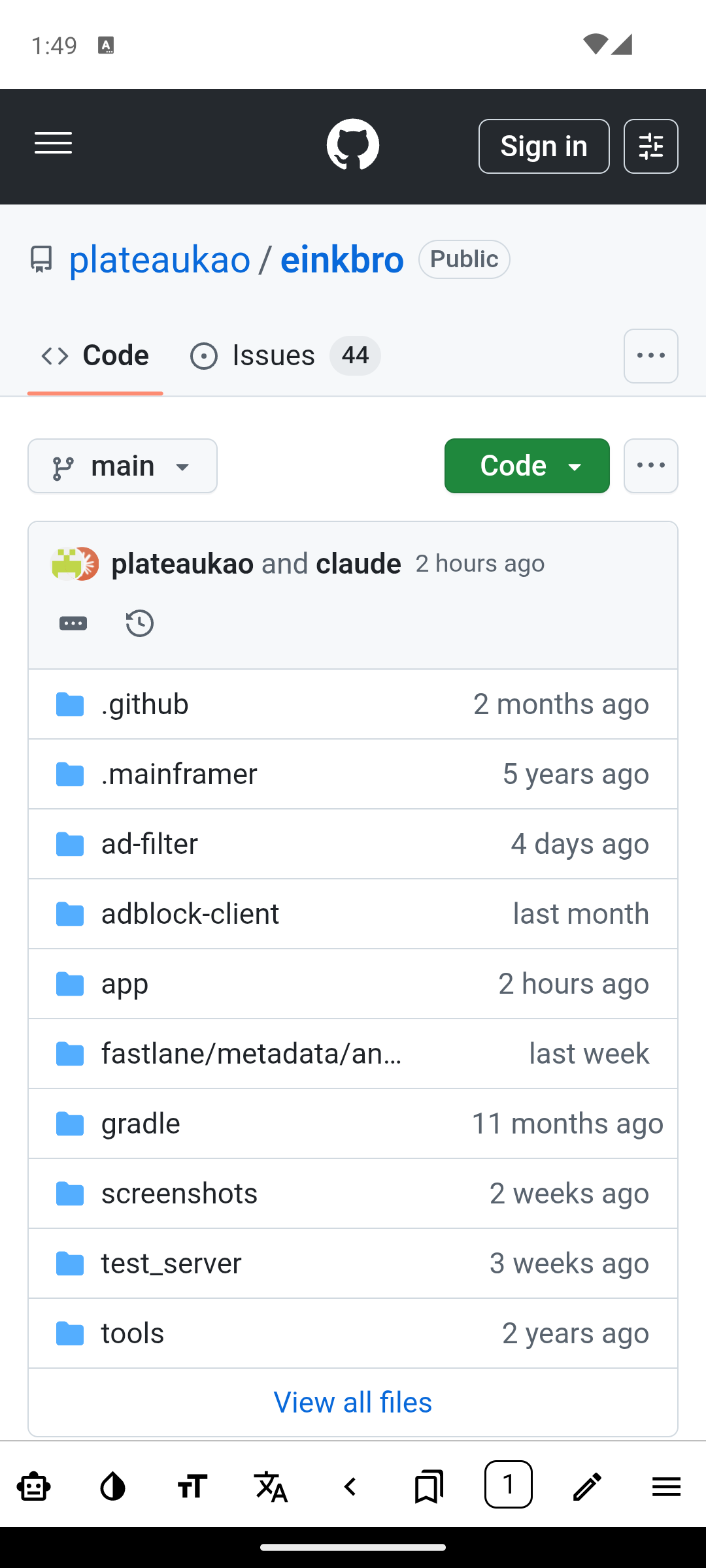
Tap the Settings icon (hamburger menu) to open the Action Menu, which gives access to all browser functions.
Tip: the Settings screen has a search bar at the top — type any setting name to jump straight to it. Search is language-aware: both localized and English terms work regardless of your app language.
Tip: changing App Language now applies immediately without restarting the app, and your open tabs are preserved.
Toolbar Actions
EinkBro has over 40 toolbar actions. You can add any of them to your toolbar and reorder them freely. Below is the complete reference.
| Action | Click | Long Click | |
|---|---|---|---|
| info | Title | Edit current URL; type keyword to search | — |
| arrow_back | Back | Go to previous page | Show recent 5 web histories |
| Refresh | Reload current page (shows Stop icon while loading) | Enter fullscreen | |
| Touch Turn Page | Toggle touch page-turning | Show touch configuration dialog | |
| upload | Page Up | Scroll up by one page | Scroll to top |
| download | Page Down | Scroll down by one page | Scroll to bottom |
| looks_one | Tab Count | Show tab list | Enable incognito mode |
| format_size | Font Size | Show font size dialog | Enter reader mode |
| menu | Settings (Menu) | Show action menu | Show quick access dialog |
| bookmarks | Bookmarks | Show bookmarks | Add current URL to bookmarks |
| straighten | Toolbar Setting | Open toolbar configuration | — |
| view_column | Vertical Layout | Toggle vertical reading mode | — |
| chrome_reader_mode | Reader Mode | Toggle reader mode | — |
| Bold Font | Toggle bold font style | — | |
| text_increase | Increase Font | Increase font size by 10% | — |
| text_decrease | Decrease Font | Decrease font size by 10% | — |
| fullscreen | Fullscreen | Enter fullscreen mode | — |
| arrow_forward | Forward | Go to next page | — |
| rotate_right | Rotate Screen | Rotate screen orientation | — |
| translate | Translation | Translate current page | Show different translate modes |
| cancel_presentation | Close Tab | Close current tab | — |
| edit | Input URL | Show pen icon to edit URL (no web title) | — |
| library_add | New Tab | Create a new tab | — |
| Desktop Mode | Toggle desktop user agent | — | |
| toc | TOC | Show table of contents (EPUB/reader) | — |
| search | Search | Search text on current page | — |
| folder_copy | Duplicate Tab | Duplicate current tab | — |
| record_voice_over | TTS (Read Aloud) | Read web content aloud | — |
| Page Info | Show page position / page count | — | |
| g_translate | Google In-Place | Google Translate in-place | — |
| segment | Translate by Paragraph | Inline paragraph-by-paragraph translation | — |
| minimize | Move to Background | Move browser to background | — |
| swipe_vertical | Touch Direction Up/Down | Toggle touch area direction (up/down) | — |
| swipe | Touch Direction Left/Right | Toggle touch area direction (left/right) | — |
| schedule | Time | Show current time on toolbar | — |
| space_bar | Spacer | Flexible space between icons | — |
| share | Share Link | Share current page link | — |
| article | Save EPUB | Save/open EPUB dialog | — |
| invert_colors | Invert Color | Invert page colors | — |
| chat | Chat With Web | Open AI chat about current page | — |
| Page AI | Run AI actions on full page content | — | |
| Audio Only | Hide video, keep audio and captions | — | |
| extension | Userscripts | Show menu commands registered by userscripts on this page; opens the userscript manager if none | — |
Toolbar Customization
Open Action Menu → Toolbar icons (or add the Toolbar Setting button to your toolbar). Check any item to add it to the toolbar. Drag the handle on the right side to reorder items.
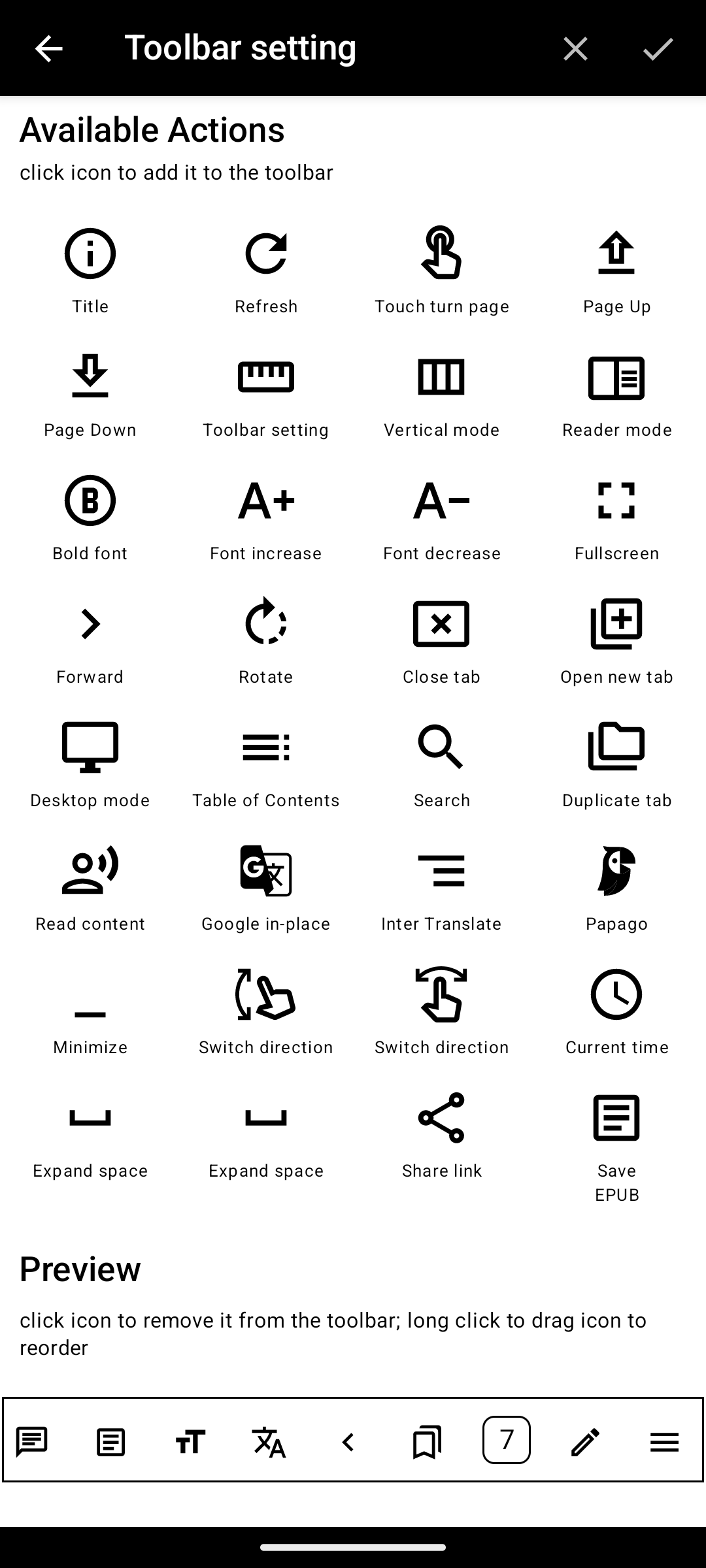
The toolbar position can be set to Bottom, Top, Left, or Right in Settings → Toolbar.
Action Menu
Tap the Settings (hamburger) icon on the toolbar to open the action menu. It contains all browser functions organized in scrollable rows.
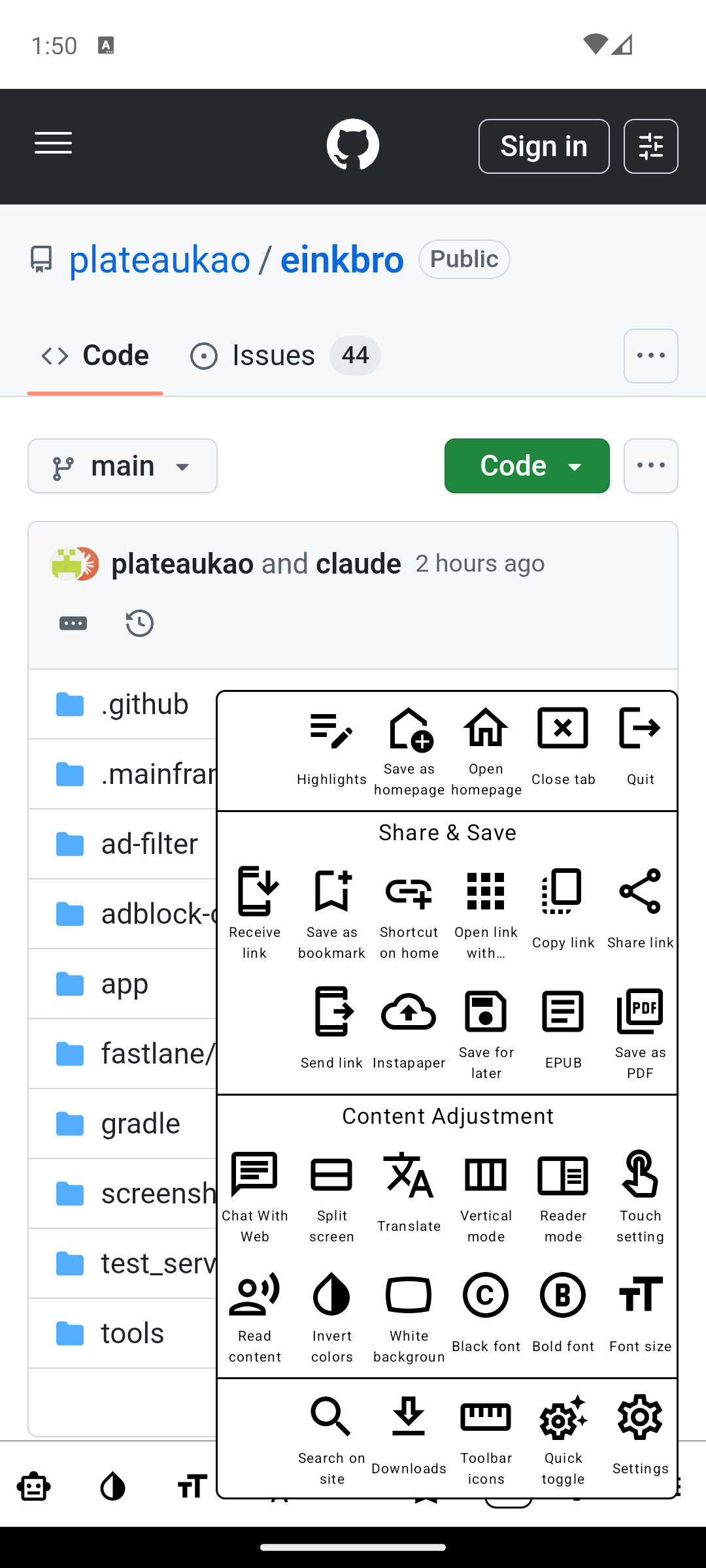
Customize what shows: long-press the menu to enter edit mode — drag tiles between rows (cross-row drag is supported) and hide tiles you never use. The layout fills bottom-row-first so the most frequently used row stays under your thumb.
Tip: long-press the Share icon to replay the last share target you used (skips the system chooser).
Settings: UI
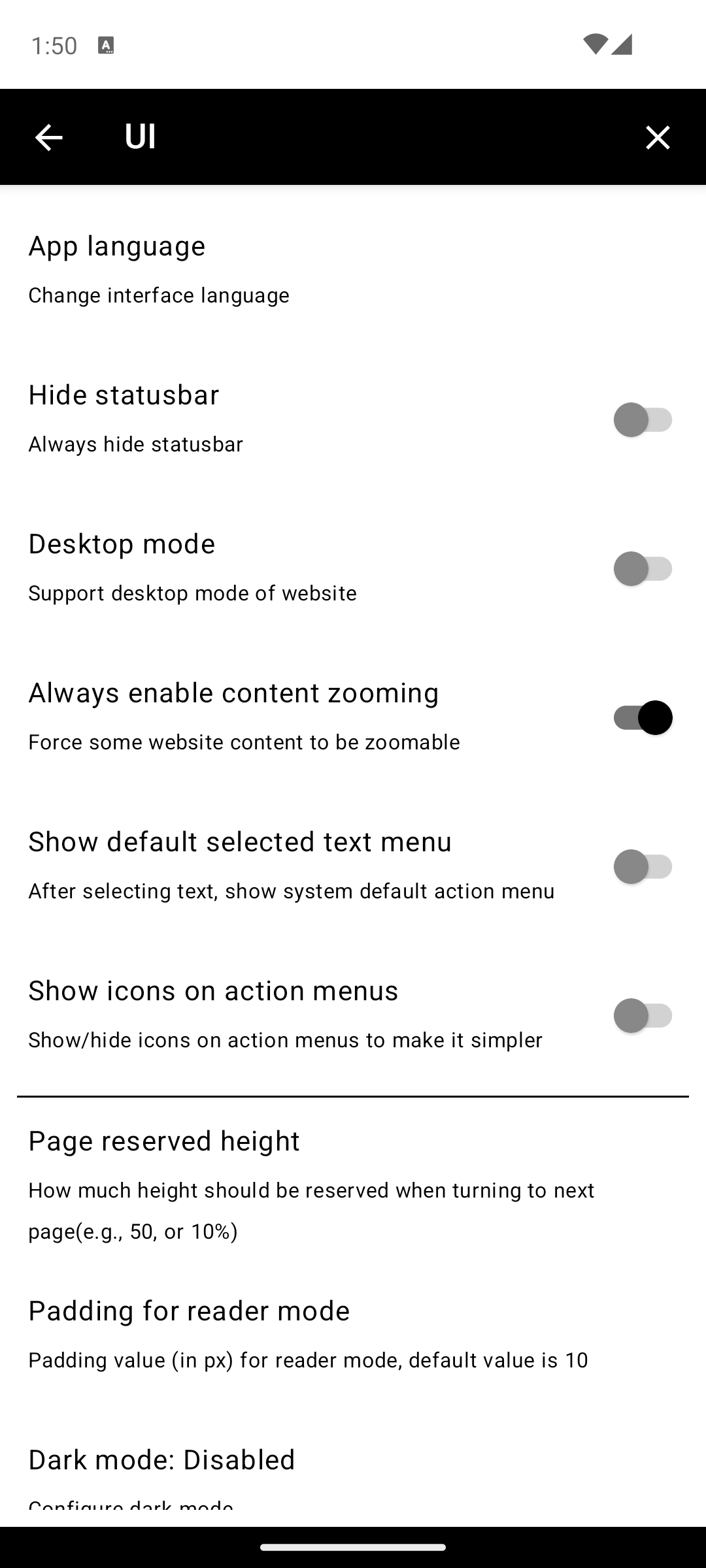
80.Follow system, Force On, Disabled. Default: Follow system.Deep re-encodes images with full dithering, while Fast applies a lightweight CSS filter instead — no processing cost, and it also covers JS-generated images, but without dithering. Options: Off, 10%, 30%, 50%, 70%, 100%. Default: Off, Deep.





Right, Left, Center, Don't show, Custom. Default: Right.Start input URL, Show homepage, Show bookmarks, Show start page (see Start Page). Default: Start input URL.Settings: Toolbar
The toolbar-position picker shows a tablet diagram so you can see exactly where Bottom / Top / Left / Right will place the bar. The same screen offers mirrored-side and full-height previews. Newly added toolbar icons appear in the middle of the bar and briefly blink so they're easy to spot.
Floating button (FAB): changing its position applies live without restarting the activity.
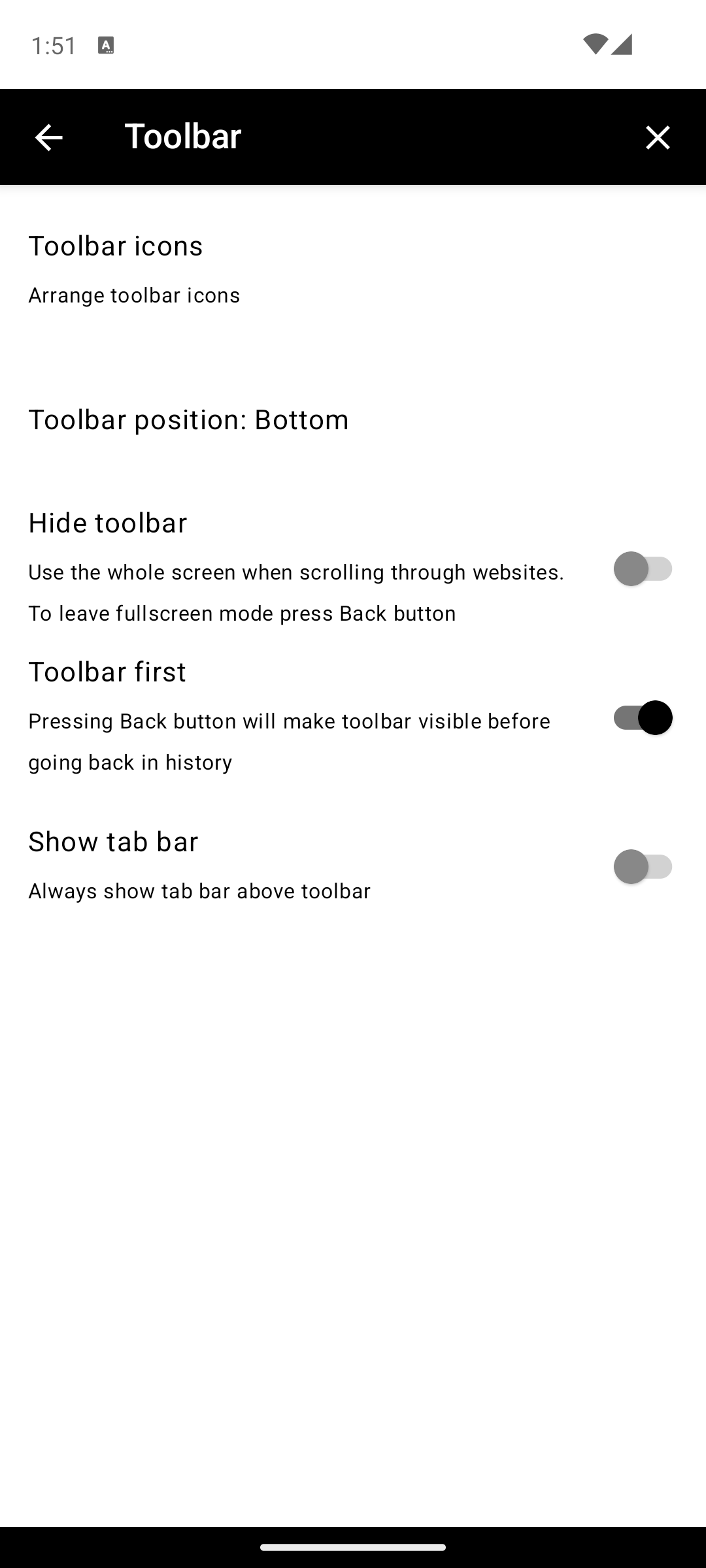
Bottom, Top, Left, Right. Default: Bottom.Settings: Behavior
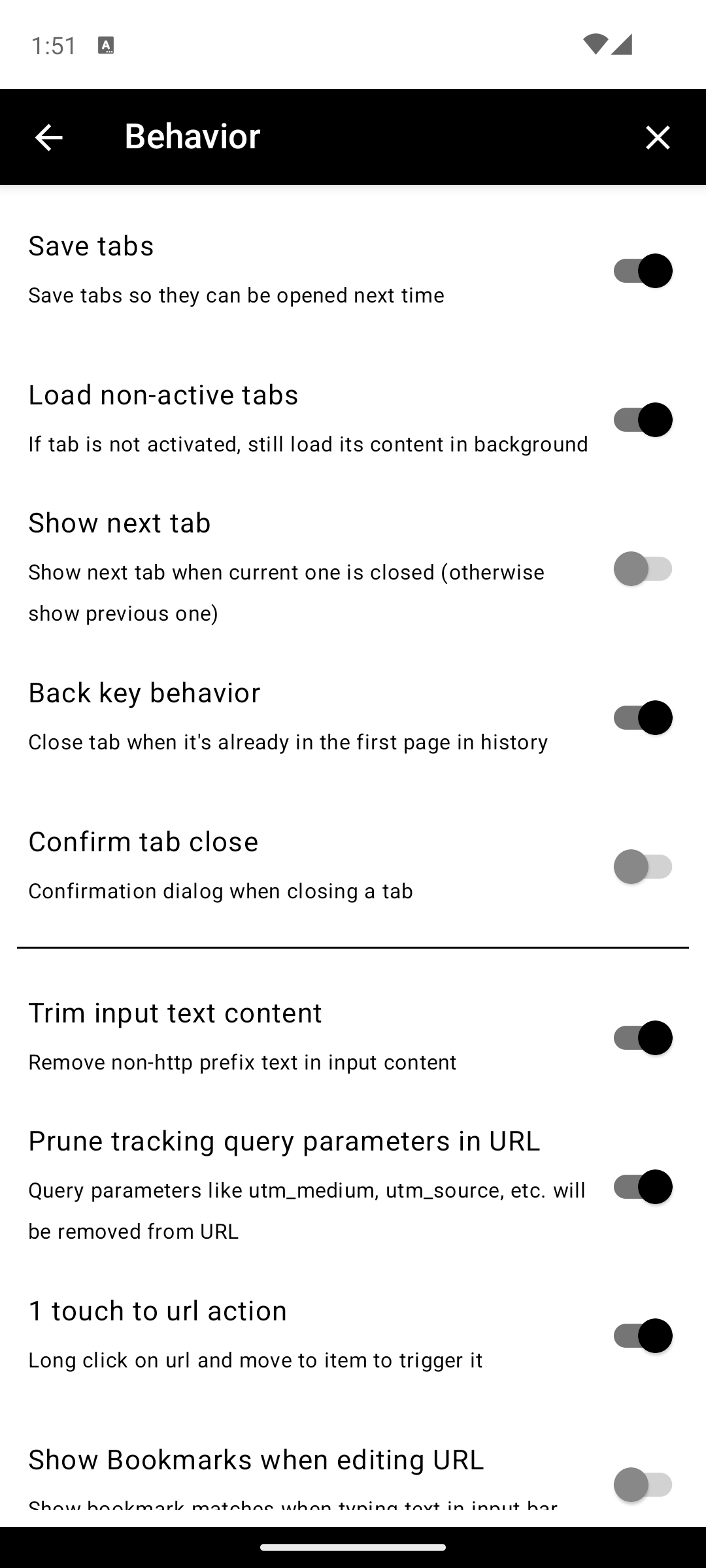
Tab Management
URL & Navigation
utm_* and other tracking params from URLs. Default: off.Video
Input & Controls
Display & Rendering
Security & Network
Settings: Gestures
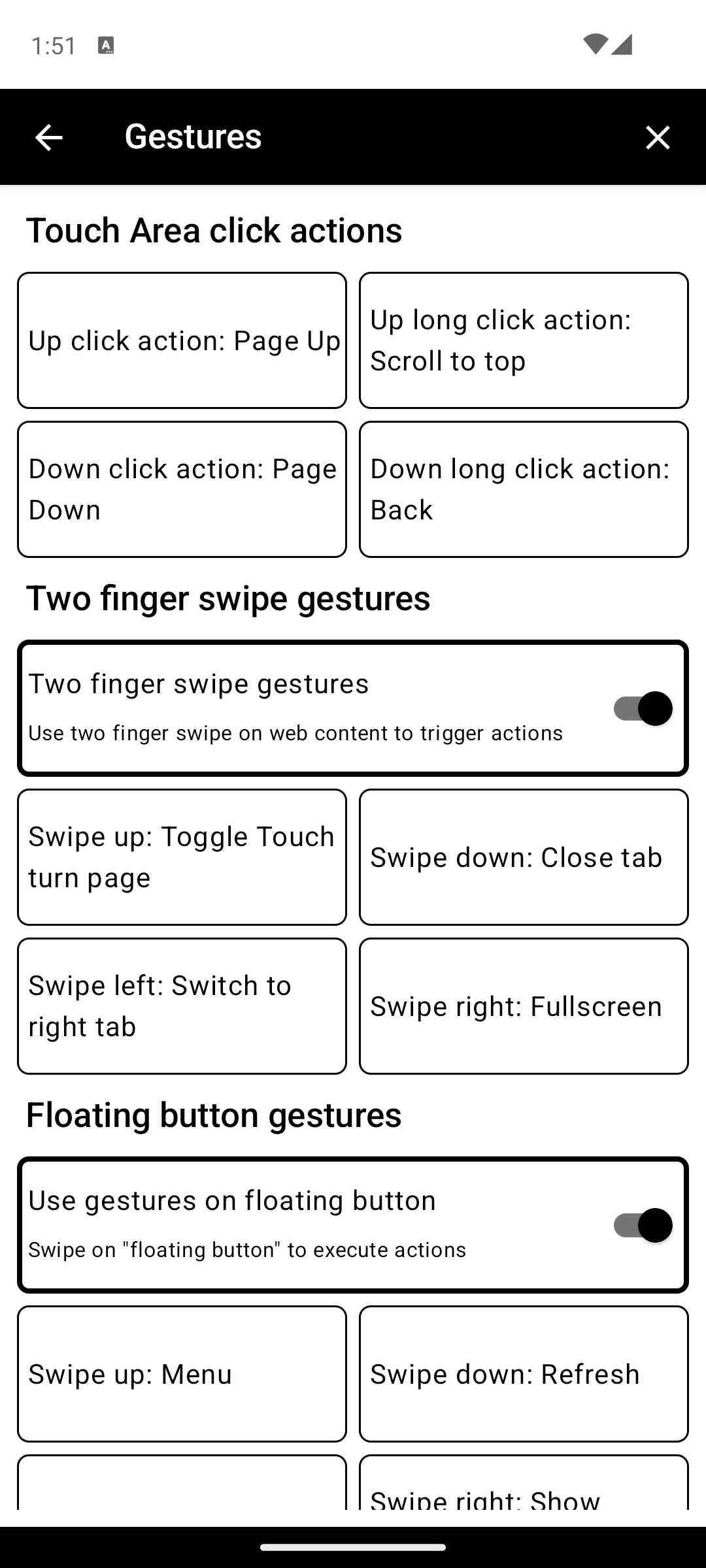
Touch Area Click Actions
Configure what happens when you tap or long-press the touch page-turning areas. Each can be set to: Page Up, Page Down, Scroll Up, Scroll Down, Scroll to Top, Scroll to Bottom, Overview, and more.
Any browser action is bindable as a gesture. The full toolbar action catalog (Reader Mode, Translation, Chat With Web, Touch Direction, etc.) shows up in every gesture picker — touch areas, two-finger swipes, and floating-button gestures alike.
Two Finger Swipe Gestures
Floating Button Gestures
Settings: Backup
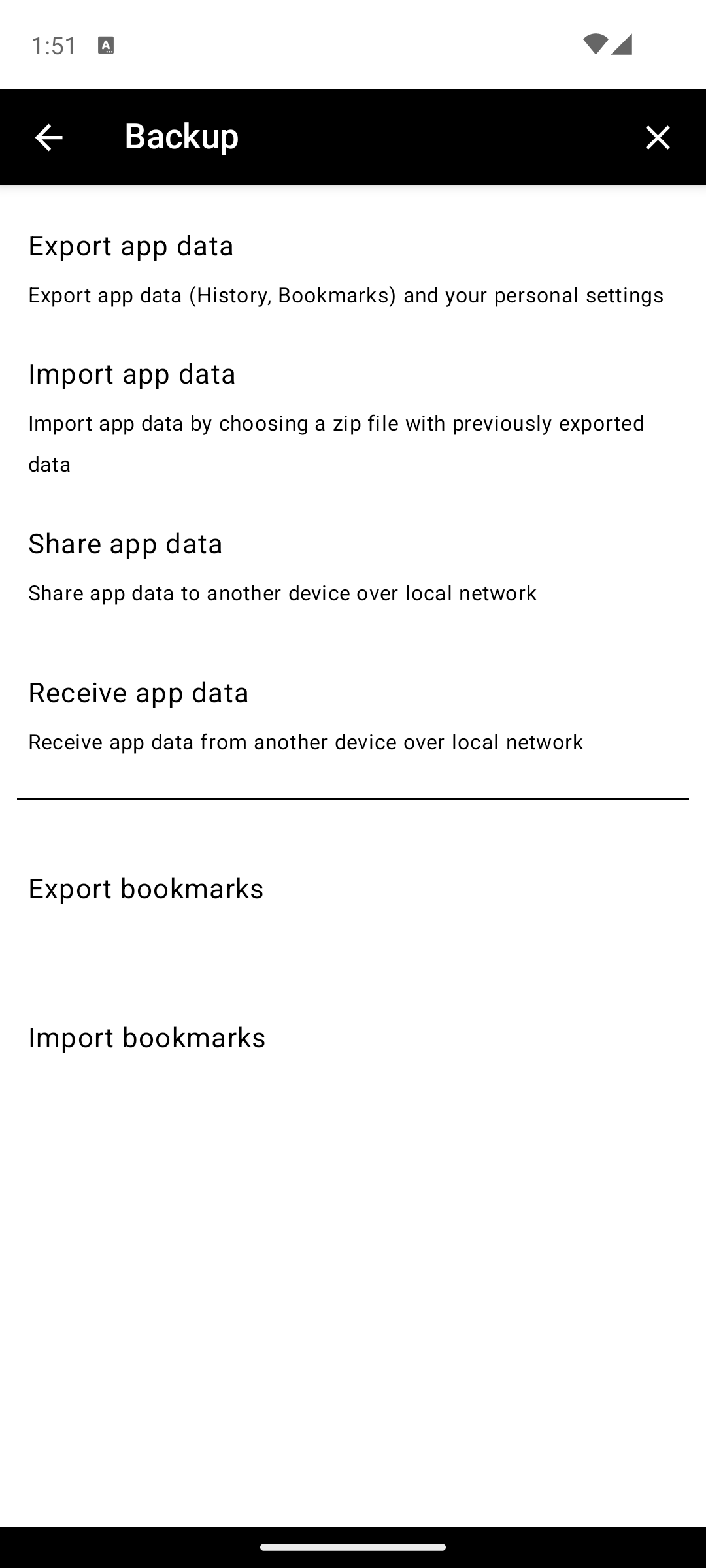
Restores merge, not replace: restoring a backup (from Google Drive or a zip) merges into local data — bookmarks, site settings (including per-site overrides like page reserved height), userscripts, AI query results, chat sessions, highlights, and saved pages are appended. Locally created data is never deleted, and restoring the same backup twice adds no duplicates.
Settings: Site Settings
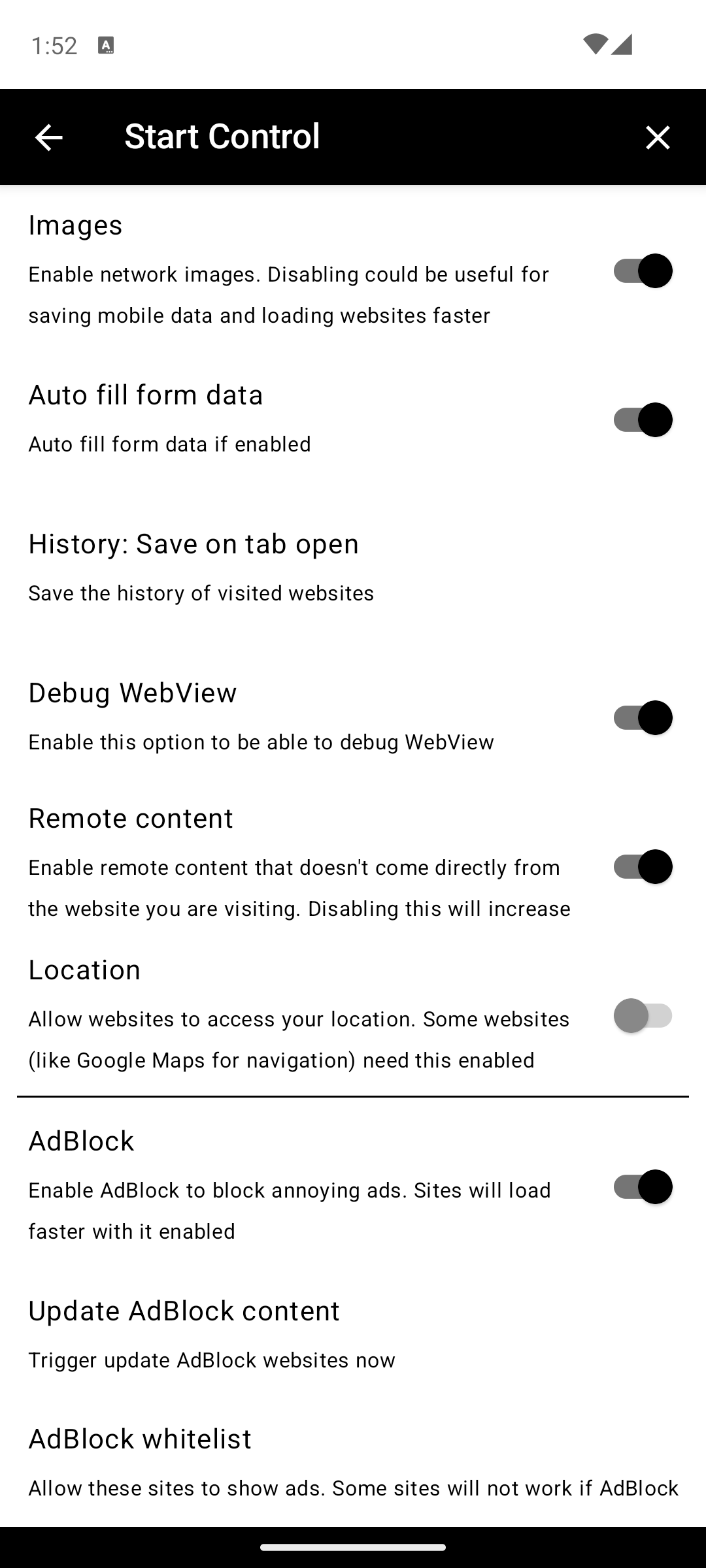
Save when opening, Save when closing, Disabled. Default: Save when opening.AdBlock
JavaScript
Cookies
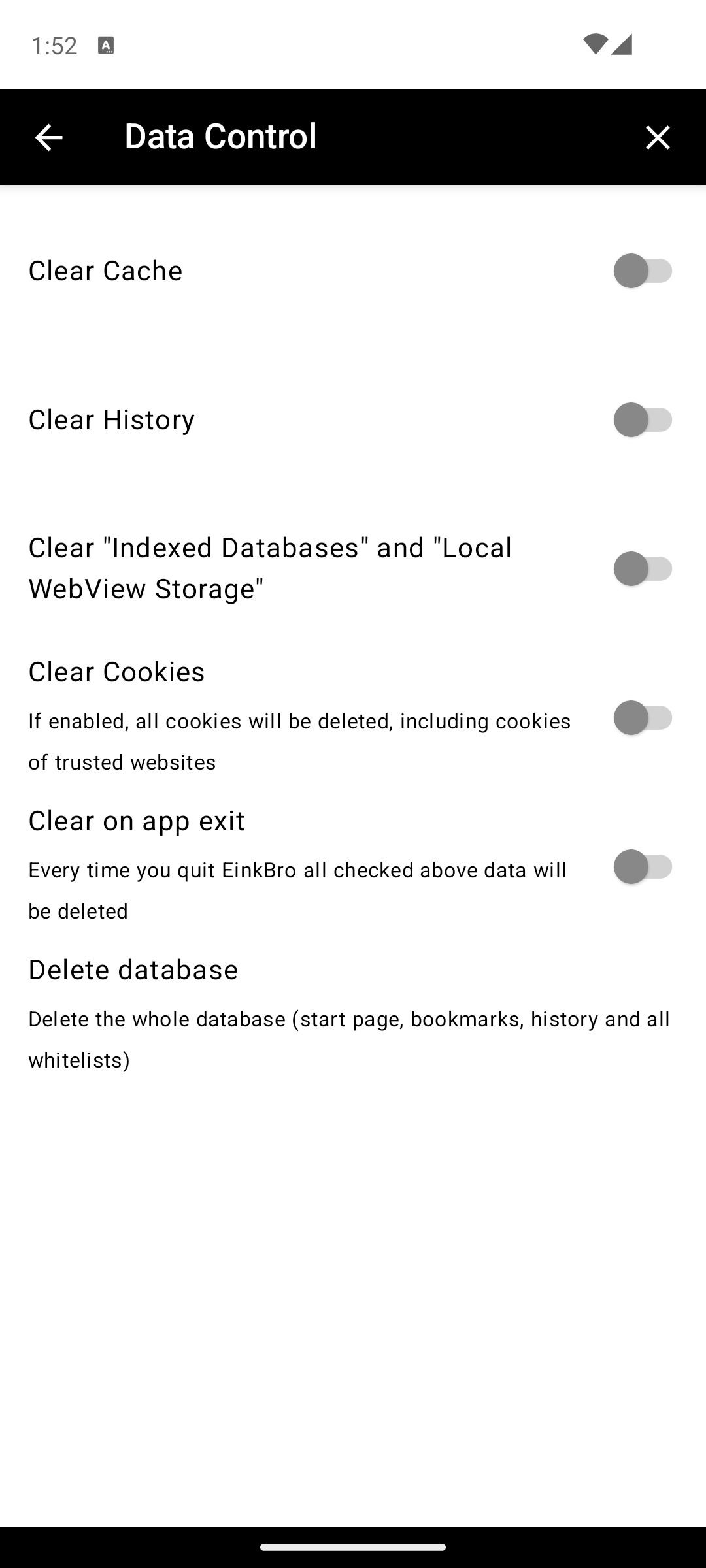
Settings: Data Control
Settings: Search
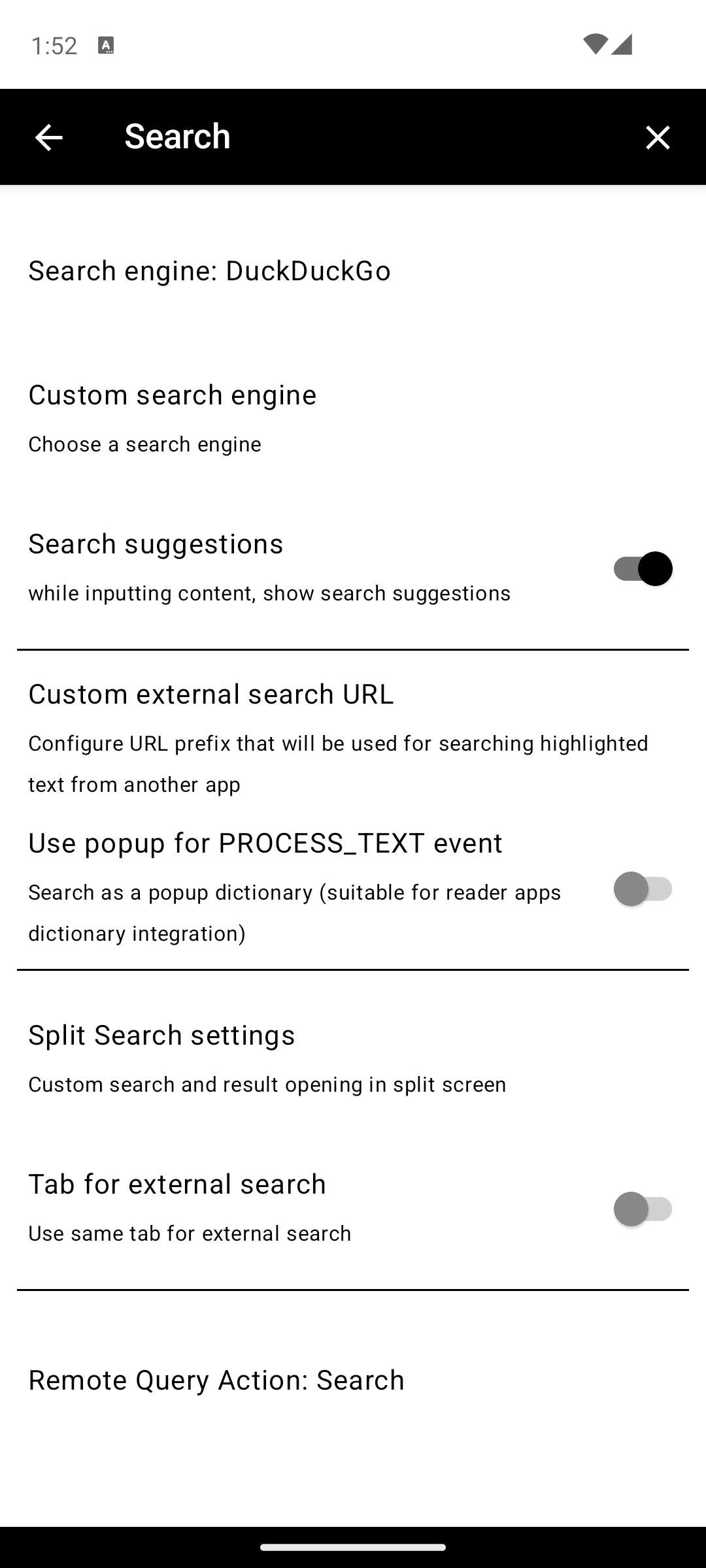
Google, Bing, DuckDuckGo, Startpage, Startpage (de), Baidu, Searx, Qwant, Ecosia, Yandex.%s placeholder. Default: https://www.google.com/search?q=%s.Settings: Misc
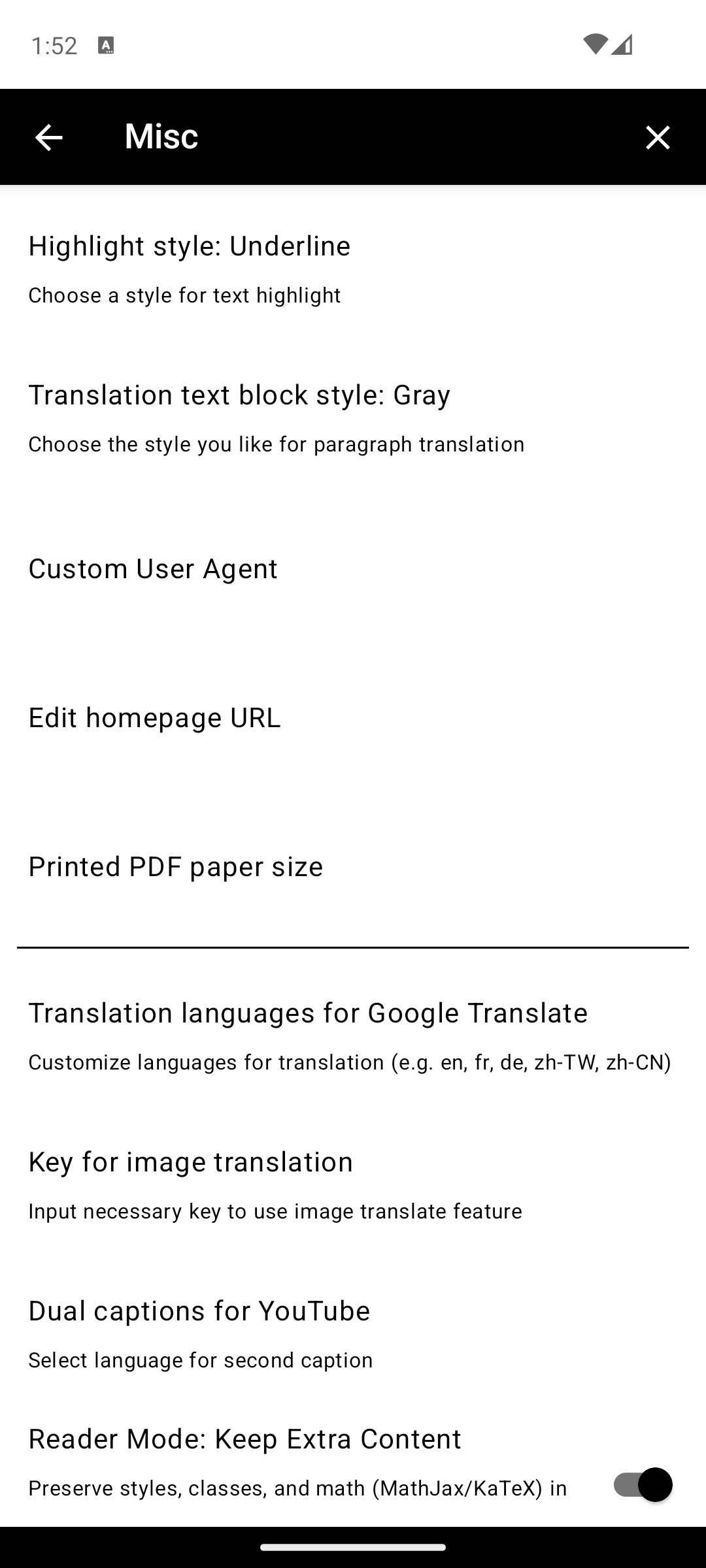
en, fr, de, zh-TW, zh-CN).Settings: Gen AI
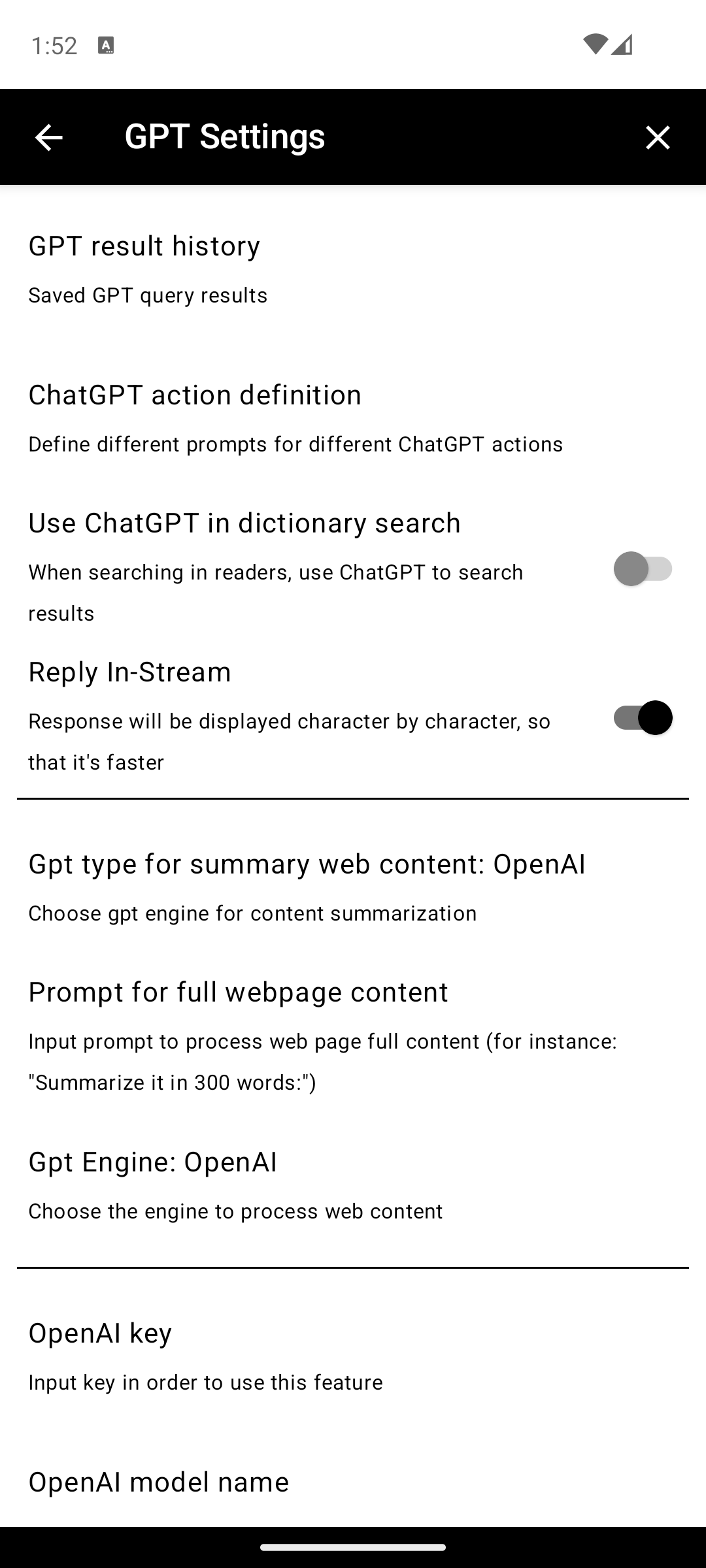
General
Web Content Processing
Default, OpenAI, Self-hosted, Google Gemini.Summarize in 50 words:.OpenAI
gpt-4.1. Can use other OpenAI models.tts-1 (default), tts-1-hd, gpt-4o-mini-tts.gpt-4o-mini-tts model.OpenAI Compatible Server
https://api.openai.com.Google Gemini
gemini-2.5-flash.Reader Mode
Reader mode strips away headers, sidebars, footers, and ads, leaving only the main article content. It's ideal for long-form reading on E-Ink screens.
- Activate via Reader Mode toolbar button or Action Menu → Reader mode
- Long-press the Font Size toolbar button also enters reader mode
- Long-press the Reader Mode icon to open the reader layout settings dialog: page margin and line spacing apply live, plus two columns in landscape, Keep extra content (preserves math notation like MathJax/KaTeX and styling), and a shortcut to the reader font dialog
- Vertical (CJK) reading mode: page turns snap to line boundaries, tate-chu-yoko for short digits/acronyms, and the same margin/line-spacing settings apply
- Reader mode has its own toolbar configuration with: Rotate, Fullscreen, Bold Font, Font Size, Touch, TOC, Page Info, Settings, Close Tab
UI Color Themes
Give the browser chrome your own look. Open Settings → UI → Theme to pick an accent color, a border style, and a fill — every combination applies live to dialogs, panels, settings screens, and the toolbar, with no restart.
Color
- Seven presets: Classic (black), Light Blue, Dark Blue, Green, Sepia, Purple, Red
- Custom — pick any accent on a hue wheel; backgrounds and text tints are derived from it automatically
- Invert colors — flips the theme into a colored dark look
Border Style
How dialogs, panels, and buttons are framed: None, Classic, Round, Sharp, Paper (print-like double frame), Dashed, Postage Stamp (scalloped edge), Sketch (hand-drawn wobble), Certificate (thick frame with a hairline inner rule), or Sticker (rounded frame with an offset shadow). Dividers inside dialogs and the toolbar's page-facing edge follow the same style.
Fill
The background treatment of themed surfaces, independent of the border: plain, Tonal, Gradient, or a subtle repeating pattern — Stripes, Dots, Graph, Ruled, or Crosshatch. With Gradient selected, tap its swatch again to open a dial that adjusts the gradient's direction and strength with a live preview while you drag.
The theme reaches beyond dialogs: the Android 12+ system splash screen, the built-in start page, the toolbar's load-progress line, and the settings status bar all follow it.
Start Page
A built-in start page with a search box and a tile grid of your favorite sites — the page shown in the hero screenshot.
- Search box — uses the browser's own search suggestions and your configured search engine
- Tile grid — add sites from bookmarks or enter them manually; tiles show each site's favicon
- Tap the title to rename the heading or set a background image from your device; the image anchors to the bottom of the screen, and its brightness picks the light or dark text style
- Follows the app's dark mode and the selected UI theme — background, fill pattern, search bar, wordmark, and tiles
- Enable it via New Tab Behavior → Show start page in Settings → UI; it also serves as the default homepage
Split Screen
Split screen opens a second web panel alongside the current page. Useful for reading news lists while viewing articles, or for AI chat alongside content.
- Activate via Action Menu → Split screen or long-press any link
- The split panel has its own mini toolbar (top to bottom):
- Orientation — Toggle vertical/horizontal split. Long-click flips the two screens.
- Dual screen link — When enabled, clicking links in main panel opens in the second panel
- Scroll sync — Synchronize scrolling between panels (useful for translation comparison)
- Font size +/− — Adjust font in the split panel
- Close — Close split screen
Per-Site Overrides
Many display and behavior options can be saved per site so they apply automatically on subsequent visits. Open the Site Settings dialog from the toolbar (or via gesture binding) to configure them.
Rule Scope
- Whole site or a URL path — a rule can cover the whole host or be scoped to a path such as
example.com/docs; the most specific rule wins, field by field - The editor shows where each inherited value comes from (a path rule, the host rule, or the global setting)
- Configured sites — Settings → Site Settings lists every saved rule so you can review, edit, or remove them in one place
- Rules are re-applied on same-document navigations (pushState, hash changes, redirects), so path-scoped rules keep up with single-page apps
Display & Viewport
- Desktop viewport width — force a site to render at desktop layout regardless of the global mobile/desktop toggle
- Page reserved height — reserve a custom overlap when paging through a specific site
- Display settings — remember Reader Mode, vertical text, bold/black font, white background, font size, etc. per site
- Translation mode — pick paragraph vs. in-place, and the provider, on a per-site basis (see Translation section below)
Content Overrides
- AdBlock, Cookies, JavaScript, Images, Desktop mode — each can be forced on or off for the current site, overriding the global setting; whitelist the site you are on without typing domains in Settings. The Images switch lets you turn image loading off for just one site to save data
- Whitelist entries in the Settings lists can be edited by tapping them
- On phones the Site Settings dialog opens full-screen so all options fit; tablets keep the centered dialog
Custom CSS & JavaScript
For sites that need style tweaks or scripted fixes, the Site Settings dialog accepts:
- Custom CSS — appended to the page on every load (e.g. hide a sticky header, widen the article column)
- Post-load JavaScript — runs after the DOM is ready, useful for click-to-expand fixes or removing pop-ups that bypass adblock
Each has its own on/off switch, so a patch can stay saved but temporarily disabled while you troubleshoot a page.
The AI agent (under Chat With Web) can author and save these patches for you — ask it to "hide the sticky banner on this site" and it will write CSS, scope it to the current domain, and persist it.
Userscripts
EinkBro includes a Tampermonkey-style userscript engine, so the same community scripts you run on the desktop (from sites like Greasy Fork) work on your e-reader. Scripts run automatically on the pages they match.
Installing a Script
- From a link — tap any
.user.jslink while browsing. EinkBro fetches it and opens an editor with the code pre-filled; tap OK to install. - Manually — open Settings → Site Settings → Userscripts (labelled "Manage Tampermonkey-style userscripts"), then tap Add userscript. Paste code directly into the Userscript code field, or type a URL into Install from URL and tap Fetch.
Re-installing a script that shares an existing script's @name updates it in place instead of creating a duplicate.
Managing Scripts
The Userscripts screen lists every installed script. Each row has:
- Enable / disable toggle — turn a script off without deleting it
- Check for update — re-fetch the latest version (see below)
- Edit — view or modify the script's code
- Delete — remove the script permanently
Menu Commands
Scripts that register entries with GM_registerMenuCommand surface them through the Userscripts toolbar action (the puzzle extension icon — add it in Toolbar Customization). Tapping it lists the commands the current page's scripts registered; if none are registered, it opens the userscript manager. Menu commands are page-scoped and reset when you navigate away.
Updating Scripts
Updates are manual: tap Check for update on a script. EinkBro reads the script's @updateURL / @downloadURL, compares versions, and installs the newer one in place. You'll see a toast such as "Updated to v2.1", "Already up to date", or "No update URL for this script".
Supported APIs
The engine grants the common Greasemonkey/Tampermonkey APIs, each with a promise-based GM.* equivalent:
- Storage —
GM_getValue,GM_setValue,GM_deleteValue,GM_listValues - DOM —
GM_addStyle,GM_addElement - Network —
GM_xmlhttpRequest(cross-origin, gated by@connect) - Menu —
GM_registerMenuCommand,GM_unregisterMenuCommand - Misc —
GM_openInTab,GM_setClipboard,GM_notification,GM_log,GM_info
Metadata directives parsed from the // ==UserScript== header include @name, @namespace, @version, @description, @match, @include, @exclude, @require, @connect, @run-at (document-start / document-idle), @noframes, @updateURL, and @downloadURL.
Translation
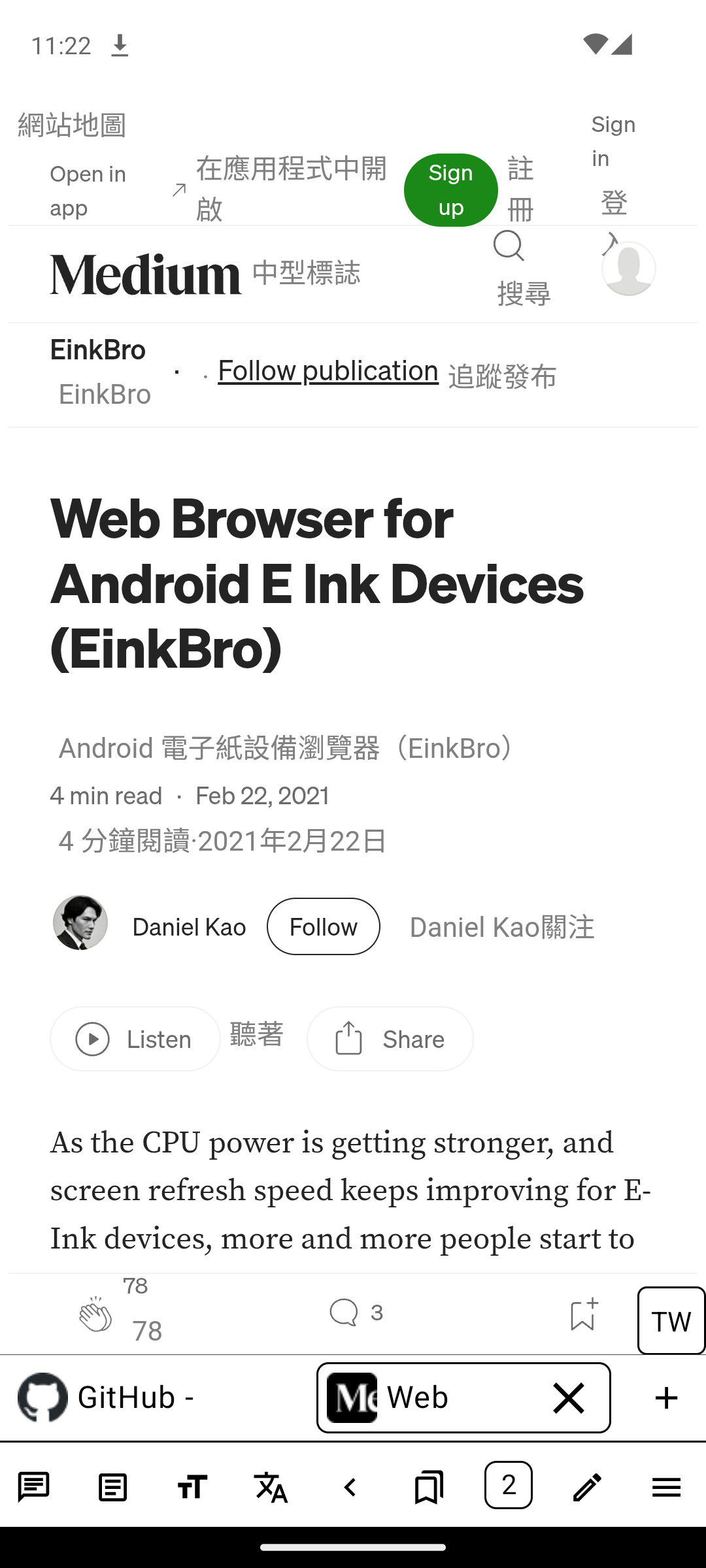
EinkBro offers multiple translation methods:
Paragraph-by-Paragraph Translation
Translates each paragraph inline, showing the translation alongside the original text. Activate via the Translate by Paragraph toolbar action or long-press the Translate button for mode selection. Providers: Google Translate, DeepL, OpenAI, Gemini.
Per-Site Translation Mode
The translation config dialog (long-press Translate) lets you save a different translation mode for each site — useful when one site reads better with DeepL paragraph mode while another needs Gemini in-place. The chosen mode is restored automatically on subsequent visits.
In-Place Translation
Translates content inline using OpenAI or Google Gemini, replacing the original text in place. Activate via long-press on the Translate button and selecting in-place mode.
Full Page Translation
Translates the entire page via Google Translate. Activate via Action Menu → Translate or the Translation toolbar button.
Image Translation
Translates text within images. Results are cached to disk for faster subsequent access. Long-click the translate icon to batch-translate all remaining images. Requires an API key configured in Settings → Misc → Translate Image API Key.
Dual Captions
Display subtitles in two languages on YouTube videos. Configure in Settings → Misc → Dual Captions for YouTube.
EPUB Export
Save web articles as EPUB ebook files, complete with images and table of contents.
- Activate via Action Menu → EPUB
- The dialog has tabs for opening existing EPUBs and saving new ones
- Save multiple web pages into the same EPUB — each becomes a chapter
- Drag and drop to reorder chapters in the TOC editor
- EPUB files include an EinkBro identifier for easy identification
- Content must be reader-mode compatible for best results
Supernote devices: EinkBro detects Supernote hardware and routes downloads (EPUB / PDF / other files) to Document/ so they appear directly in the device's file browser. Saved EPUBs and PDFs can be opened in the Supernote reader straight from the action menu.
Touch Page Turning
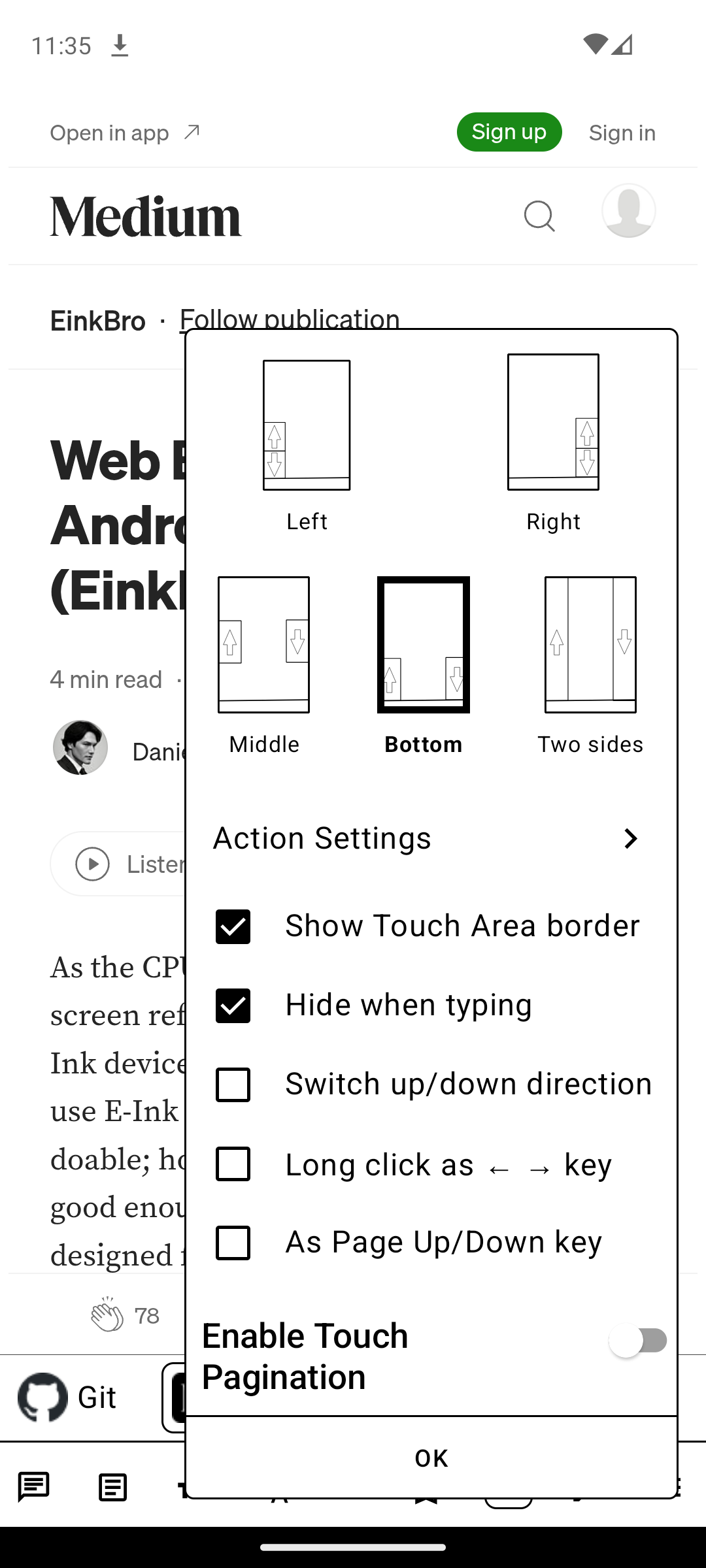
EinkBro's signature feature for E-Ink devices. Tap the left or right (or top/bottom) edges of the screen to page up/down, just like turning pages in an e-book.
- Enable via the Touch Turn Page toolbar button
- Ebook touch mode — tap to turn pages directly in WebView with native touch interception (no JS injection)
- Configure touch areas and actions in Settings → Gestures
- Choose between left/right or up/down touch area layout
- Long-press volume key temporarily disables page turning for 5 seconds
- Volume keys can also be used for page turning (enable in Quick Toggle)
- Adjust Page Reserved Height in Settings → UI to control overlap between pages
AI / ChatGPT Integration
Interact with web content using AI directly in the browser.
Chat With Web
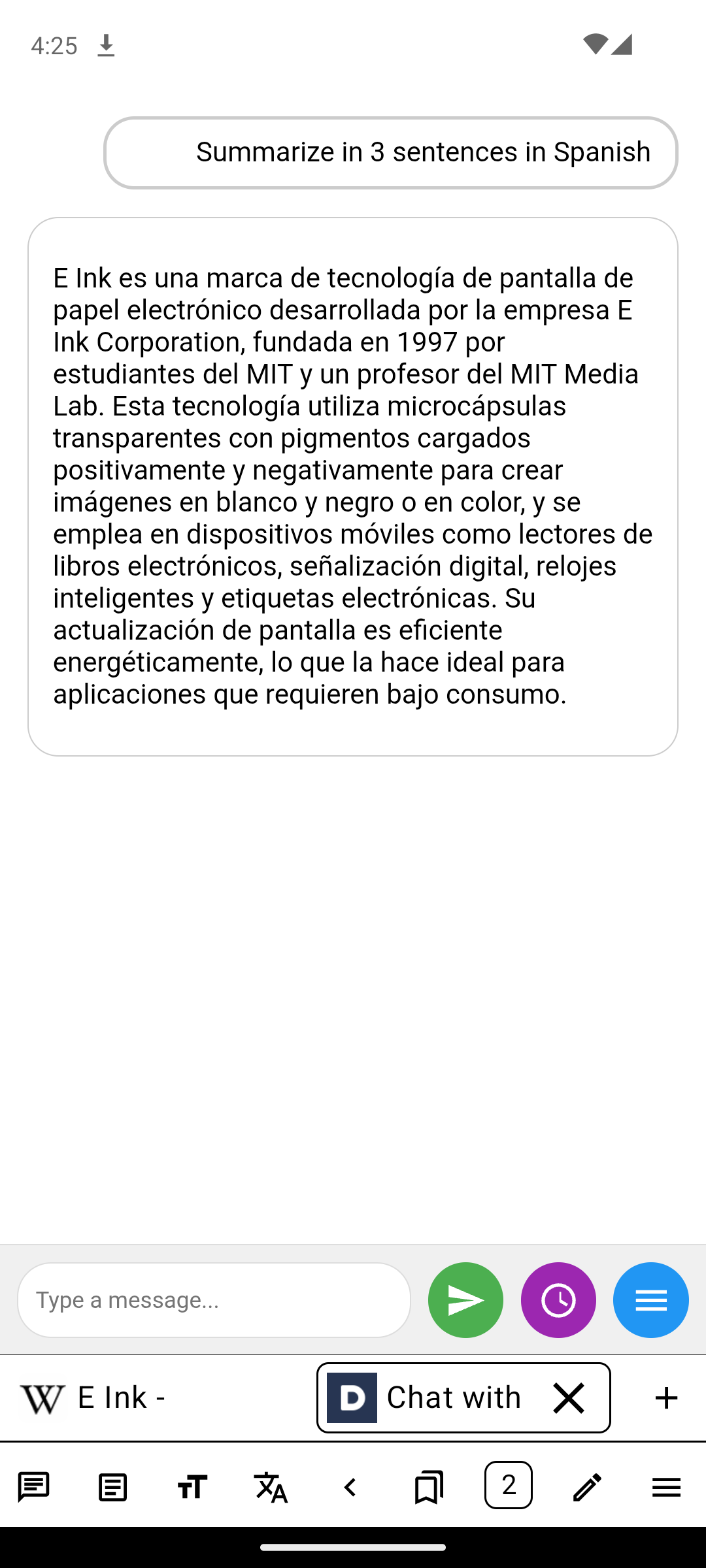
Open a split-screen AI chat panel to ask questions about the current page. Activate via the Chat With Web toolbar button or Action Menu → Chat With Web.
Page AI
Run AI actions on the full page content (e.g., summarize, extract key points). Uses the prompt configured in Settings → GPT → Prompt for Full Webpage Content.
Task Runner
Chain multi-step AI workflows on the current page — the first item in the Page AI action menu. Define a sequence of prompts that operate on page content, selection, or the previous step's output. Useful for "extract → translate → summarize" pipelines you re-run frequently.
Free-form Agent
Built into Chat With Web, the agent handles open-ended follow-up conversations with persistent access to the page content and previous turns. Iterate on analysis without re-pasting context, and let it call back into page tools.
The agent can also organize your bookmarks: it has tools to add bookmarks and create folders, and large bookmark lists are filed page by page so it stays reliable. It can likewise author per-site CSS/JS patches — see Per-Site Overrides.
News-Anchor TTS
A read-aloud action template that delivers full articles in a news-anchor voice, using OpenAI's gpt-4o-mini-tts model with preconfigured voice instructions. Configure under Settings → GPT → Audio Output Instructions.
Custom GPT Actions
Define reusable AI actions with custom system prompts in Settings → GPT → ChatGPT Action Definition. These appear in the text selection context menu and can be triggered on selected text or full page content.
Supported Providers
- OpenAI — GPT-4.1 and other models via API key
- Google Gemini — Gemini 2.5 Flash and others
- Self-hosted / Ollama — Any OpenAI-compatible server via custom host URL